Step 1: How to Take a Valid GPS-Tagged Property Photo ಹಂತ 1: ಮಾನ್ಯ GPS ಟ್ಯಾಗ್ ಆಸ್ತಿ ಫೋಟೋ ಹೇಗೆ ತೆಗೆಯುವುದು
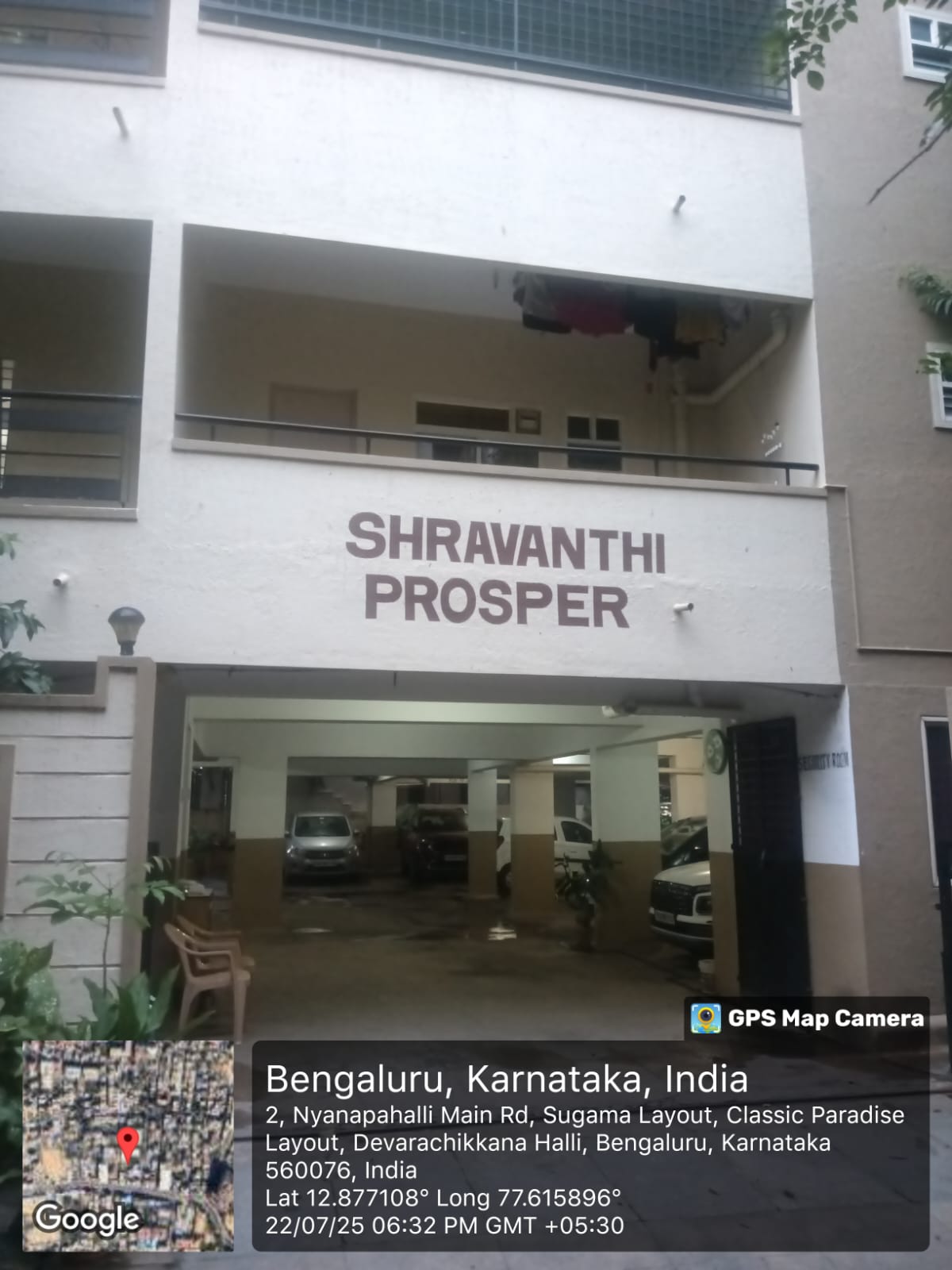
The eKhata portal requires a GPS-stamped front-elevation property photo created with GPSMapCamera. The image must show the building exterior, GPS coordinates, date, time, and address overlay before you upload it in the application.
ಇ-ಖಾತ ಪೋರ್ಟಲ್ಗೆ GPS ಸ್ಟ್ಯಾಂಪ್ ಹೊಂದಿದ ಮುಂಭಾಗದ ಆಸ್ತಿ ಫೋಟೋ ಕಡ್ಡಾಯ. ಉಚಿತ GPSMapCamera ಅಪ್ ಬಳಸಿ ಕಟ್ಟಡದ ಹೊರಭಾಗ, GPS ನಿರ್ದೇಶಾಂಕ, ದಿನಾಂಕ, ಸಮಯ ಮತ್ತು ವಿಳಾಸ ಓವರ್ಲೆ ಹೊಂದಿದ ಚಿತ್ರವನ್ನು ಸಿದ್ಧಪಡಿಸಿ.
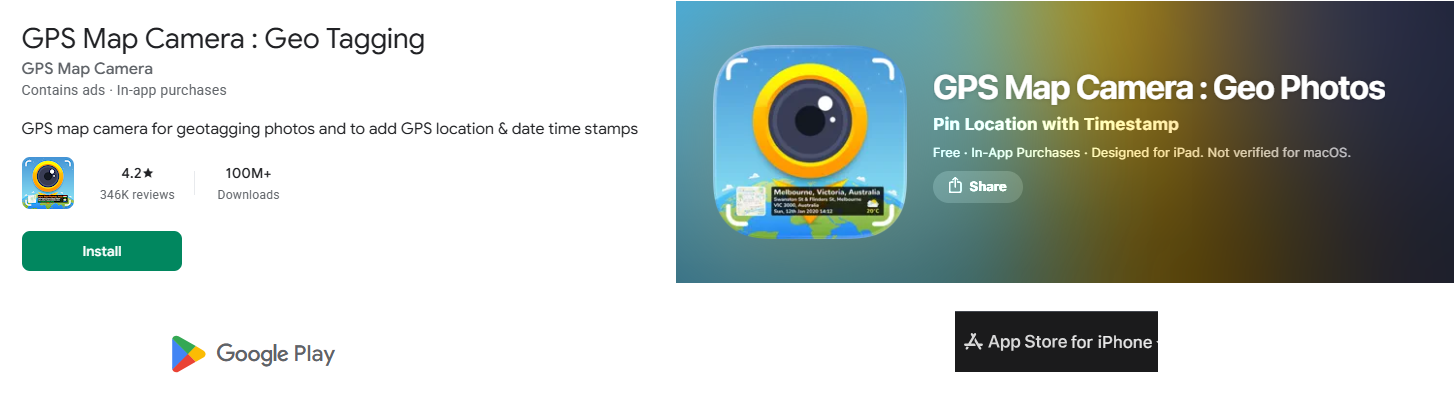
Step 1: Download GPSMapCamera from the official app store
ಹಂತ 1: ಅಧಿಕೃತ ಆಪ್ ಸ್ಟೋರ್ನಿಂದ GPSMapCamera ಡೌನ್ಲೋಡ್ ಮಾಡಿ
Open the Google Play Store (Android) or App Store (iPhone). Search for "GPSMapCamera" and install the free version. It is a simple app; no sign-up or login required.
Google Play Store (Android) ಅಥವಾ App Store (iPhone) ತೆರೆಯಿರಿ. "GPSMapCamera" ಹುಡುಕಿ ಉಚಿತ ಆವೃತ್ತಿಯನ್ನು ಸ್ಥಾಪಿಸಿ. ಸೈನ್-ಇನ್ ಅಗತ್ಯ ಇಲ್ಲ.
Step 2: Turn on phone GPS and grant location permission
ಹಂತ 2: ಫೋನ್ GPS ಆನ್ ಮಾಡಿ ಮತ್ತು ಸ್ಥಳ ಅನುಮತಿ ನೀಡಿ
Pull down the notification bar from the top of your screen and tap the Location icon to turn it ON (it should turn blue or green). Then open the GPSMapCamera app and allow Location permission when asked.
ಸ್ಕ್ರೀನ್ನ ಮೇಲ್ಭಾಗದಿಂದ ನೋಟಿಫಿಕೇಶನ್ ಬಾರ್ ಎಳೆಯಿರಿ ಮತ್ತು Location ಐಕಾನ್ ಟ್ಯಾಪ್ ಮಾಡಿ ON ಮಾಡಿ (ನೀಲಿ/ಹಸಿರು ಆಗಬೇಕು). GPSMapCamera ತೆರೆಯಿರಿ ಮತ್ತು ಕೇಳಿದಾಗ Location ಅನುಮತಿ ನೀಡಿ.
Step 3: Wait for GPS accuracy to lock below 10 metres
ಹಂತ 3: GPS ನಿಖರತೆ 10 ಮೀಟರ್ ಒಳಗೆ ಬರಲು ಕಾಯಿರಿ
Open GPSMapCamera. You will see your GPS coordinates displayed on the screen. Wait until the accuracy shows less than 10 metres before taking the photo. This takes 30–60 seconds outdoors.
GPSMapCamera ತೆರೆಯಿರಿ. GPS ನಿರ್ದೇಶಾಂಕಗಳು ಸ್ಕ್ರೀನ್ನಲ್ಲಿ ಕಾಣಿಸುತ್ತವೆ. ಫೋಟೋ ತೆಗೆಯುವ ಮೊದಲು ನಿಖರತೆ (accuracy) 10 ಮೀಟರ್ಗಿಂತ ಕಡಿಮೆ ಆಗಲು ಕಾಯಿರಿ. ಹೊರಗೆ 30–60 ಸೆಕೆಂಡ್ ತಗಲುತ್ತದೆ.
Step 4: Photograph the building front from outside the property
ಹಂತ 4: ಆಸ್ತಿಯ ಹೊರಗಿನಿಂದ ಕಟ್ಟಡದ ಮುಂಭಾಗ ಫೋಟೋ ತೆಗೆಯಿರಿ
Point your camera at the main entrance of your apartment building so the building name board (if any) and the gate are clearly visible. Tap the shutter button inside the GPSMapCamera app, not your regular camera app. The photo will automatically have GPS coordinates, date, and time stamped on it.
ಅಪಾರ್ಟ್ಮೆಂಟ್ ಕಟ್ಟಡದ ಮುಖ್ಯ ದ್ವಾರ ಕಡೆ ಕ್ಯಾಮರಾ ತಿರುಗಿಸಿ; ಕಟ್ಟಡದ ಹೆಸರು ಬೋರ್ಡ್ ಮತ್ತು ಗೇಟ್ ಸ್ಪಷ್ಟ ಕಾಣಿಸಬೇಕು. GPSMapCamera ಅಪ್ನೊಳಗೆ ಶಟರ್ ಬಟನ್ ಟ್ಯಾಪ್ ಮಾಡಿ. ಫೋಟೋದಲ್ಲಿ GPS ನಿರ್ದೇಶಾಂಕ, ದಿನಾಂಕ ಮತ್ತು ಸಮಯ ಸ್ವಯಂಚಾಲಿತವಾಗಿ ಮುದ್ರಿಸಲ್ಪಡುತ್ತದೆ.
Step 5: Verify the saved image before upload
ಹಂತ 5: ಅಪ್ಲೋಡ್ಗೆ ಮೊದಲು ಉಳಿಸಿದ ಚಿತ್ರ ಪರಿಶೀಲಿಸಿ
Open your phone's Gallery/Photos app and find the saved image. Check that the photo clearly shows:
ನಿಮ್ಮ ಫೋನ್ Gallery/Photos ಅಪ್ ತೆರೆದು ಉಳಿಸಿದ ಚಿತ್ರ ಹುಡುಕಿ. ಫೋಟೋ ಈ ಕೆಳಗಿನ ವಿಷಯಗಳನ್ನು ಸ್ಪಷ್ಟವಾಗಿ ತೋರಿಸಬೇಕು:
- ✓ GPS coordinates (latitude / longitude) stamped on the image ಚಿತ್ರದ ಮೇಲೆ GPS ನಿರ್ದೇಶಾಂಕ (latitude/longitude) ಮುದ್ರಿತ
- ✓ Date and time visible on the stamp ಸ್ಟ್ಯಾಂಪ್ನಲ್ಲಿ ದಿನಾಂಕ ಮತ್ತು ಸಮಯ ಕಾಣಿಸಬೇಕು
- ✓ Building entrance is clearly visible and well-lit ಕಟ್ಟಡ ಪ್ರವೇಶದ್ವಾರ ಸ್ಪಷ್ಟ ಮತ್ತು ಚೆನ್ನಾಗಿ ಬೆಳಗಲ್ಪಟ್ಟಿದೆ
Step 6: Transfer the original photo file to your computer
ಹಂತ 6: ಮೂಲ ಫೋಟೋ ಫೈಲ್ ಅನ್ನು ಕಂಪ್ಯೂಟರ್ಗೆ ವರ್ಗಾಯಿಸಿ
Send the photo to your computer or laptop using WhatsApp Web, Google Drive, or a USB cable. The eKhata portal accepts JPG/PNG files up to 2 MB. Keep the original; do not compress or screenshot the photo.
WhatsApp Web, Google Drive ಅಥವಾ USB ಕೇಬಲ್ ಮೂಲಕ ಫೋಟೋ ಕಂಪ್ಯೂಟರ್ಗೆ ಕಳಿಸಿ. ಇ-ಖಾತ ಪೋರ್ಟಲ್ JPG/PNG ಫೈಲ್ಗಳನ್ನು 2 MB ವರೆಗೆ ಸ್ವೀಕರಿಸುತ್ತದೆ. ಮೂಲ ಫೋಟೋ ಉಳಿಸಿಕೊಳ್ಳಿ; ಕಂಪ್ರೆಸ್ ಮಾಡಬೇಡಿ.
Step 1 Complete!
ಹಂತ ೧ ಪೂರ್ಣ!
Your GPS-stamped photo is ready. Now complete Step 2 to get your Encumbrance Certificate.
ನಿಮ್ಮ GPS ಫೋಟೋ ಸಿದ್ಧ. ಈಗ ಋಣಭಾರ ಪ್ರಮಾಣಪತ್ರ ಪಡೆಯಲು ಹಂತ ೨ ಪೂರ್ಣಗೊಳಿಸಿ.
Continue to Step 2: Kaveri EC → ಹಂತ ೨ ಮುಂದುವರೆಯಿರಿ: ಕಾವೇರಿ EC →