Step 3: How to Submit a New BBMP eKhata Application Online ಹಂತ 3: ಹೊಸ BBMP ಇ-ಖಾತ ಆನ್ಲೈನ್ ಅರ್ಜಿ ಹೇಗೆ ಸಲ್ಲಿಸುವುದು
The official GBA/BBMP issuance fee is ₹1,956, paid online after approval, while the application form is free to submit. Log in to the official BBMP eAasthi eKhata portal, enter the SAS Application Number, upload the GPS photo, verify FORM-15 EC, and submit.
ಅಧಿಕೃತ GBA/BBMP ನೀಡಿಕೆ ಶುಲ್ಕ ₹1,956; ಅನುಮೋದನೆ ಬಳಿಕ ಆನ್ಲೈನ್ನಲ್ಲಿ ಪಾವತಿಸಲಾಗುತ್ತದೆ, ಅರ್ಜಿ ಸಲ್ಲಿಕೆ ಉಚಿತ. ಅಧಿಕೃತ BBMP eAasthi ಇ-ಖಾತ ಪೋರ್ಟಲ್ಗೆ ಲಾಗಿನ್ ಮಾಡಿ, SAS ಅರ್ಜಿ ಸಂಖ್ಯೆ, GPS ಫೋಟೋ, FORM-15 EC ಮತ್ತು BESCOM ವಿವರ ನೀಡಿ ಅರ್ಜಿ ಸಲ್ಲಿಸಿ.
- ✓ 📸 GPS-stamped building photo (Step 1) 📸 GPS ಸ್ಟ್ಯಾಂಪ್ ಕಟ್ಟಡ ಫೋಟೋ (ಹಂತ 1)
- ✓ 📄 Encumbrance Certificate FORM-15 PDF (Step 2) 📄 EC ಪ್ರಮಾಣಪತ್ರ FORM-15 PDF (ಹಂತ 2)
- ✓ 📄 Registered Sale Deed (all pages) 📄 ನೋಂದಾಯಿತ ಮಾರಾಟ ದಾಖಲೆ (ಎಲ್ಲ ಪುಟ)
- ✓ 🏠 Property tax receipt with SAS Application No. 🏠 SAS ಅರ್ಜಿ ಸಂಖ್ಯೆ ಸಹಿತ ಆಸ್ತಿ ತೆರಿಗೆ ರಸೀದಿ
- ✓ 🪪 Aadhaar card with Aadhaar-linked mobile 🪪 ಆಧಾರ್-ಲಿಂಕ್ ಮೊಬೈಲ್ ಸಹಿತ ಆಧಾರ್ ಕಾರ್ಡ್
- ✓ 💡 BESCOM electricity bill (10-digit Account ID) 💡 BESCOM ವಿದ್ಯುತ್ ಬಿಲ್ (10 ಅಂಕಿ ಖಾತೆ ID)
🚨 IMPORTANT: New Khata Applicants Only
🚨 ಮಹತ್ವದ ಸೂಚನೆ: ಹೊಸ ಖಾತ ಅರ್ಜಿದಾರರಿಗೆ ಮಾತ್ರ
This guide is meant only for properties that do NOT yet have any BBMP Khata, not even a manual (paper) khata. If you already have a BBMP khata (even manual/old), do NOT apply here. Anyone applying for a new khata despite having an existing khata is liable for criminal action and rejection of the request by GBA / BBMP.
ಈ ಮಾರ್ಗದರ್ಶಿ ಯಾವುದೇ BBMP ಖಾತ ಇಲ್ಲದ ಆಸ್ತಿಗಳಿಗೆ ಮಾತ್ರ, ಕೈಯಲ್ಲಿ ಬರೆದ (ಮ್ಯಾನ್ಯುವಲ್) ಖಾತ ಸಹ ಇಲ್ಲದಿರಬೇಕು. ಈಗಾಗಲೇ BBMP ಖಾತ ಇದ್ದರೆ ಇಲ್ಲಿ ಅರ್ಜಿ ಸಲ್ಲಿಸಬೇಡಿ. ಅಸ್ತಿತ್ವದಲ್ಲಿರುವ ಖಾತ ಇದ್ದರೂ ಹೊಸ ಖಾತ ಅರ್ಜಿ ಸಲ್ಲಿಸಿದರೆ ಕ್ರಿಮಿನಲ್ ಕ್ರಮ ಮತ್ತು GBA / BBMP ನಿಂದ ತಿರಸ್ಕಾರ.
📋 What the Official Portal Will Ask For
📋 ಅಧಿಕೃತ ಪೋರ್ಟಲ್ ಕೇಳುವ ಮುಖ್ಯ ವಿಷಯಗಳು
- 1. GBA/BBMP issues eKhata in two forms: A-Khata (for properties fully compliant with building regulations) and B-Khata / Form-B (for properties with regulatory irregularities, e.g. BDA layout violations). Both are legitimate eKhata documents and both are prerequisites to sell the property. GBA/BBMP ಇ-ಖಾತ ಎರಡು ರೂಪದಲ್ಲಿ ನೀಡುತ್ತದೆ: A-ಖಾತ (ಸಂಪೂರ್ಣ ನಿಯಮ-ಸಮ್ಮತ ಆಸ್ತಿಗೆ) ಮತ್ತು B-ಖಾತ / Form-B (ಅನಿಯಮಿತ ಆಸ್ತಿಗೆ ಉದಾ. BDA ಲೇಔಟ್ ಉಲ್ಲಂಘನೆ). ಎರಡೂ ಮಾನ್ಯ ಇ-ಖಾತ ದಾಖಲೆಗಳು ಮತ್ತು ಆಸ್ತಿ ಮಾರಾಟಕ್ಕೆ ಅಗತ್ಯ.
- 2. It typically takes 25 to 60 working days for a new eKhata to be processed and approved by GBA (Greater Bangalore Authority, formerly known as BBMP, Bruhat Bengaluru Mahanagara Palike, the Municipal Corporation for Bangalore). ಹೊಸ ಇ-ಖಾತ ಪ್ರಕ್ರಿಯೆಗೆ ಸಾಮಾನ್ಯವಾಗಿ 25 ರಿಂದ 60 ಕೆಲಸದ ದಿನ ತಗಲುತ್ತದೆ (GBA: ಬೃಹತ್ ಬೆಂಗಳೂರು ಪ್ರಾಧಿಕಾರ, ಹಿಂದೆ BBMP: ಬೃಹತ್ ಬೆಂಗಳೂರು ಮಹಾನಗರ ಪಾಲಿಕೆ ಎಂದು ಕರೆಯಲಾಗುತ್ತಿತ್ತು).
- 3. 🌐 India IP required: The GBA/BBMP eKhata site is accessible only from an IP address within India. If you are residing outside India, connect to an Indian VPN server before visiting the portal. 🌐 ಭಾರತ IP ಅಗತ್ಯ: GBA/BBMP ಇ-ಖಾತ ಸೈಟ್ ಭಾರತದ IP ವಿಳಾಸದಿಂದ ಮಾತ್ರ ಲಭ್ಯ. ಭಾರತದ ಹೊರಗಿದ್ದರೆ ಭಾರತ VPN ಸರ್ವರ್ಗೆ ಸಂಪರ್ಕಿಸಿ ನಂತರ ಪೋರ್ಟಲ್ ತೆರೆಯಿರಿ.
- 4. Required documents: Registered Sale Deed, latest property tax receipt (with SAS Application Number), Aadhaar card with Aadhaar-linked mobile number, and BESCOM 10-digit Account ID (from your electricity bill). ಅಗತ್ಯ ದಾಖಲೆಗಳು: ನೋಂದಾಯಿತ ಮಾರಾಟ ದಾಖಲೆ, ಇತ್ತೀಚಿನ ಆಸ್ತಿ ತೆರಿಗೆ ರಸೀದಿ (SAS ಅರ್ಜಿ ಸಂಖ್ಯೆ ಸಹಿತ), ಮೊಬೈಲ್ ಲಿಂಕ್ ಆಧಾರ್ ಕಾರ್ಡ್, BESCOM 10 ಅಂಕಿ ಖಾತೆ ID (ವಿದ್ಯುತ್ ಬಿಲ್ನಿಂದ).
- 5. Official fee: The application is free to submit, but the final GBA/BBMP issuance fee is ₹1,956 and is paid online only after approval. ಅಧಿಕೃತ ಶುಲ್ಕ: ಅರ್ಜಿ ಸಲ್ಲಿಕೆ ಉಚಿತ, ಆದರೆ ಅಂತಿಮ GBA/BBMP ನೀಡಿಕೆ ಶುಲ್ಕ ₹1,956; ಇದು ಅನುಮೋದನೆ ಬಳಿಕ ಮಾತ್ರ ಆನ್ಲೈನ್ನಲ್ಲಿ ಪಾವತಿಸಲಾಗುತ್ತದೆ.
- 6. Field verification: A GBA/BBMP inspector will physically visit your property during review; usually no action is needed from your side unless the portal asks for a clarification. ಕ್ಷೇತ್ರ ಪರಿಶೀಲನೆ: ಪರಿಶೀಲನೆ ಹಂತದಲ್ಲಿ GBA/BBMP ಇನ್ಸ್ಪೆಕ್ಟರ್ ನಿಮ್ಮ ಆಸ್ತಿಗೆ ಪ್ರತ್ಯಕ್ಷ ಭೇಟಿ ನೀಡುತ್ತಾರೆ; ಪೋರ್ಟಲ್ ಸ್ಪಷ್ಟನೆ ಕೇಳಿದರೆ ಹೊರತು, ಸಾಮಾನ್ಯವಾಗಿ ನಿಮ್ಮಿಂದ ಪ್ರತ್ಯೇಕ ಕ್ರಮ ಅಗತ್ಯವಿಲ್ಲ.
Step 1: Open the official BBMP eAasthi eKhata portal
ಹಂತ 1: ಅಧಿಕೃತ BBMP eAasthi ಇ-ಖಾತ ಪೋರ್ಟಲ್ ತೆರೆಯಿರಿ
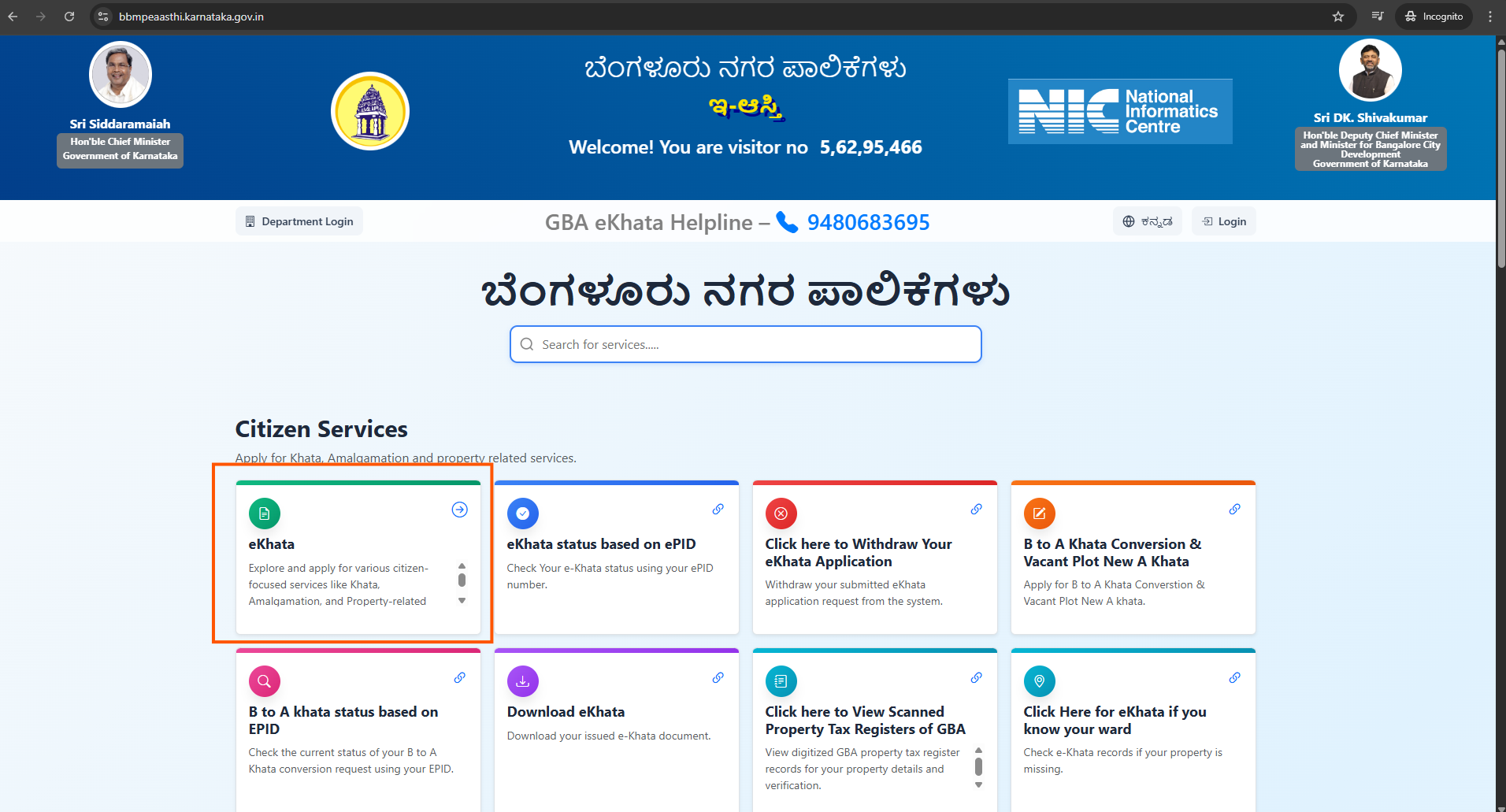
Open a browser and navigate to bbmpeaasthi.karnataka.gov.in. This is the official GBA (Greater Bangalore Authority) property and eKhata portal. On the home page, look for the "eKhata" panel in the Citizen Services section (highlighted in the screenshot with an orange box) and click on it.
ಬ್ರೌಸರ್ ತೆರೆದು bbmpeaasthi.karnataka.gov.in ಗೆ ಹೋಗಿ. ಇದು GBA (ಬೃಹತ್ ಬೆಂಗಳೂರು ಪ್ರಾಧಿಕಾರ) ಅಧಿಕೃತ ಪೋರ್ಟಲ್. ಮನೆ ಪುಟದಲ್ಲಿ ನಾಗರಿಕ ಸೇವೆಗಳ ವಿಭಾಗದಲ್ಲಿ "eKhata" ಪ್ಯಾನೆಲ್ (ಸ್ಕ್ರೀನ್ಶಾಟ್ನಲ್ಲಿ ಕಿತ್ತಳೆ ಬಾಕ್ಸ್ನಿಂದ ಗುರುತಿಸಲಾಗಿದೆ) ಮೇಲೆ ಕ್ಲಿಕ್ ಮಾಡಿ.
Step 2: Click New Khata to start the application
ಹಂತ 2: ಅರ್ಜಿ ಪ್ರಾರಂಭಿಸಲು New Khata ಕ್ಲಿಕ್ ಮಾಡಿ
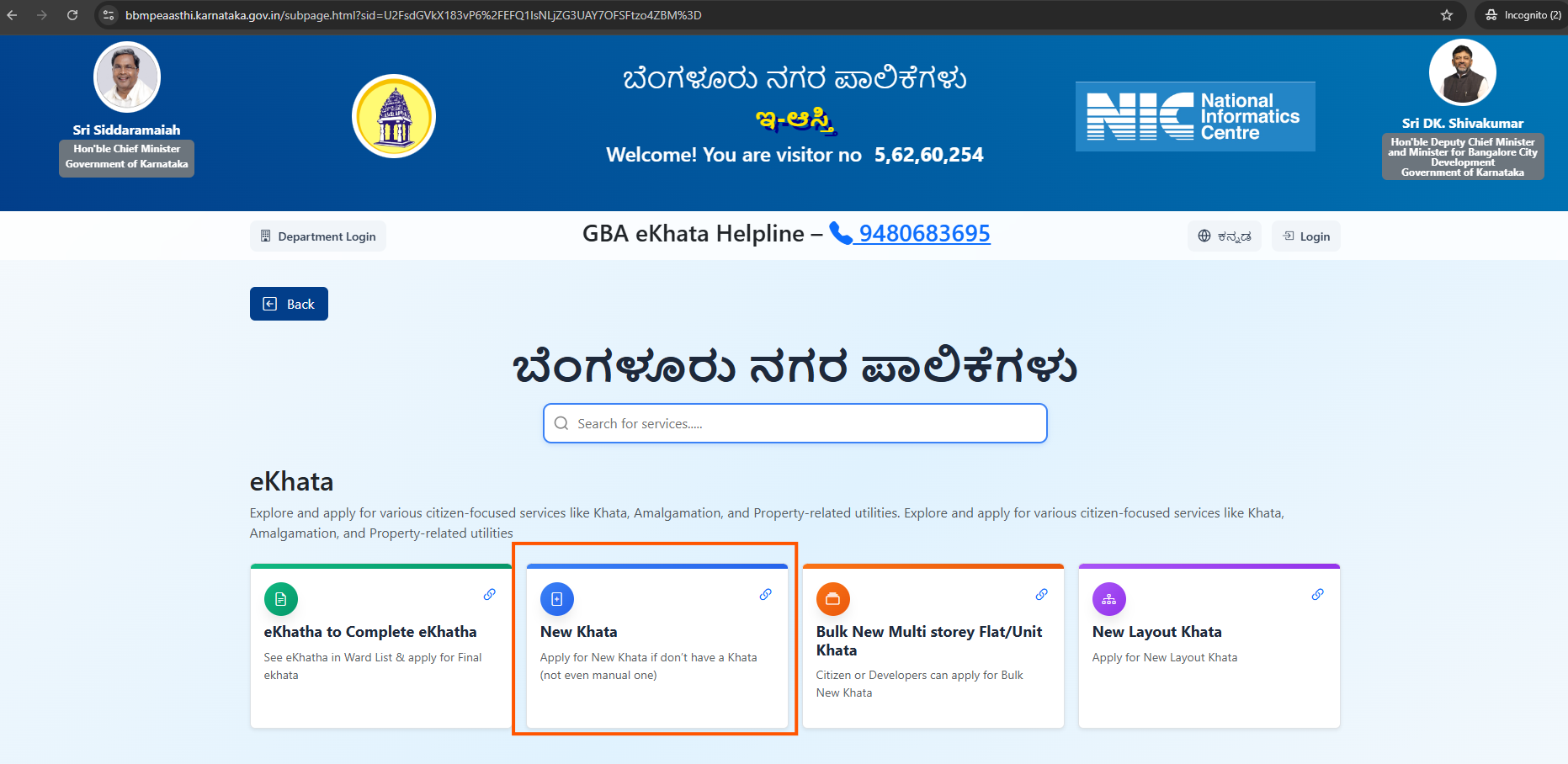
After clicking the eKhata panel, you will see several sub-options. Click on the "New Khata" panel (highlighted in the screenshot with an orange box). This will open a new page or tab, the official BBMP New Khata Issuance System at bbmp.karnataka.gov.in.
eKhata ಪ್ಯಾನೆಲ್ ಕ್ಲಿಕ್ ಮಾಡಿದ ನಂತರ ಹಲವು ಉಪ-ಆಯ್ಕೆಗಳು ಕಾಣಿಸುತ್ತವೆ. "New Khata" ಪ್ಯಾನೆಲ್ (ಸ್ಕ್ರೀನ್ಶಾಟ್ನಲ್ಲಿ ಕಿತ್ತಳೆ ಬಾಕ್ಸ್ನಿಂದ ಗುರುತಿಸಲಾಗಿದೆ) ಮೇಲೆ ಕ್ಲಿಕ್ ಮಾಡಿ. ಇದು ಹೊಸ ಪುಟ/ಟ್ಯಾಬ್ ತೆರೆಯುತ್ತದೆ, bbmp.karnataka.gov.inನ ಅಧಿಕೃತ BBMP ಹೊಸ ಖಾತ ವ್ಯವಸ್ಥೆ.
Step 3: Log in with mobile number, captcha, and OTP
ಹಂತ 3: ಮೊಬೈಲ್ ಸಂಖ್ಯೆ, ಕ್ಯಾಪ್ಚಾ ಮತ್ತು OTP ಮೂಲಕ ಲಾಗಿನ್ ಮಾಡಿ
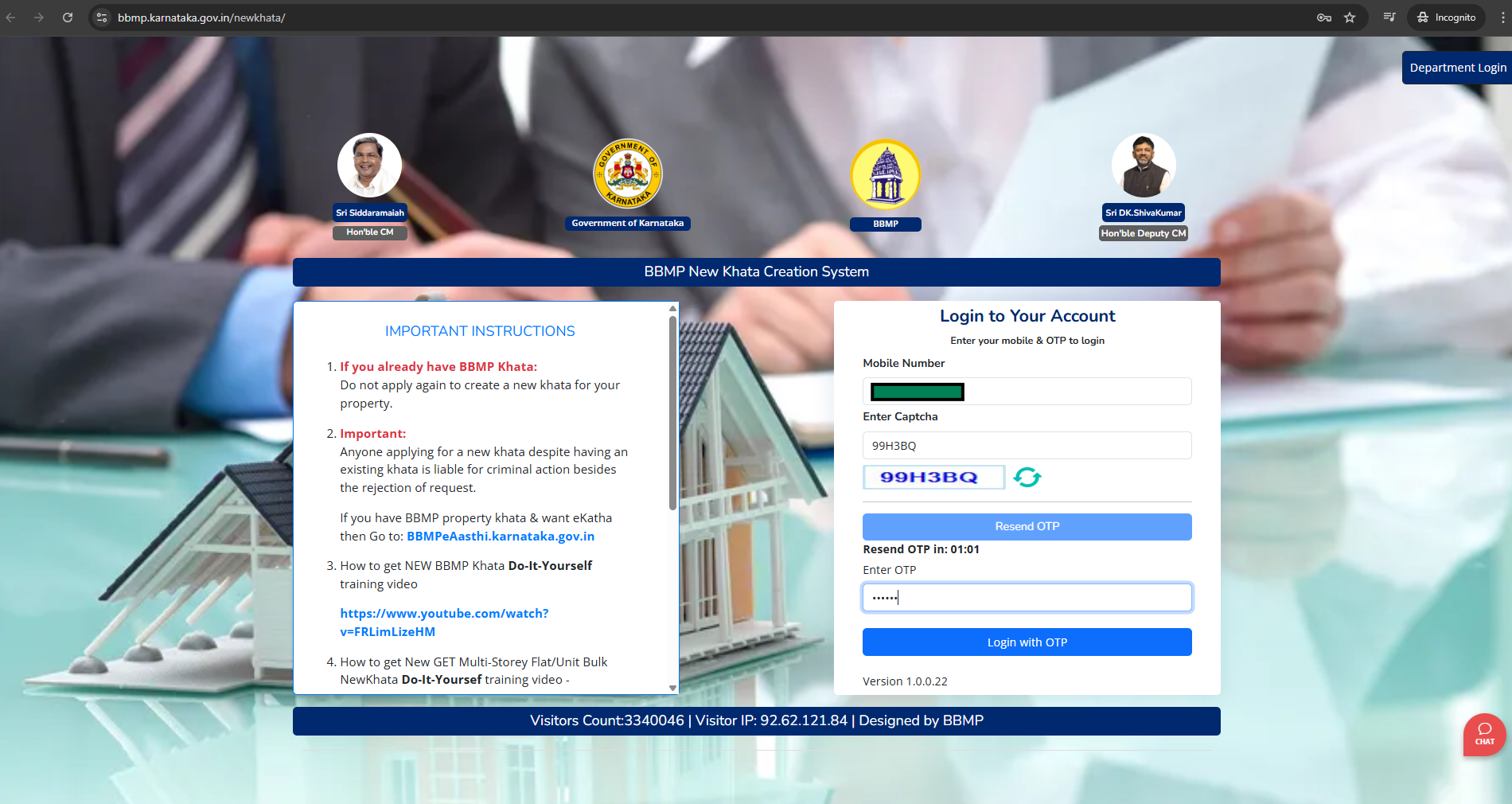
On the login page, enter your Mobile Number and solve the Captcha shown on screen. An OTP (One-Time Password) will be sent to your mobile number. Enter the received OTP and click "Login" to access the portal.
ಲಾಗಿನ್ ಪುಟದಲ್ಲಿ ನಿಮ್ಮ ಮೊಬೈಲ್ ಸಂಖ್ಯೆ ನಮೂದಿಸಿ ಮತ್ತು ಸ್ಕ್ರೀನ್ನಲ್ಲಿ ತೋರಿಸಿದ ಕ್ಯಾಪ್ಚಾ ಭರ್ತಿ ಮಾಡಿ. ನಿಮ್ಮ ಮೊಬೈಲ್ಗೆ OTP ಕಳಿಸಲ್ಪಡುತ್ತದೆ. ಸ್ವೀಕರಿಸಿದ OTP ನಮೂದಿಸಿ "Login" ಕ್ಲಿಕ್ ಮಾಡಿ.
Step 4: Enter the 10-digit SAS Application Number
ಹಂತ 4: 10 ಅಂಕಿಯ SAS ಅರ್ಜಿ ಸಂಖ್ಯೆ ನಮೂದಿಸಿ
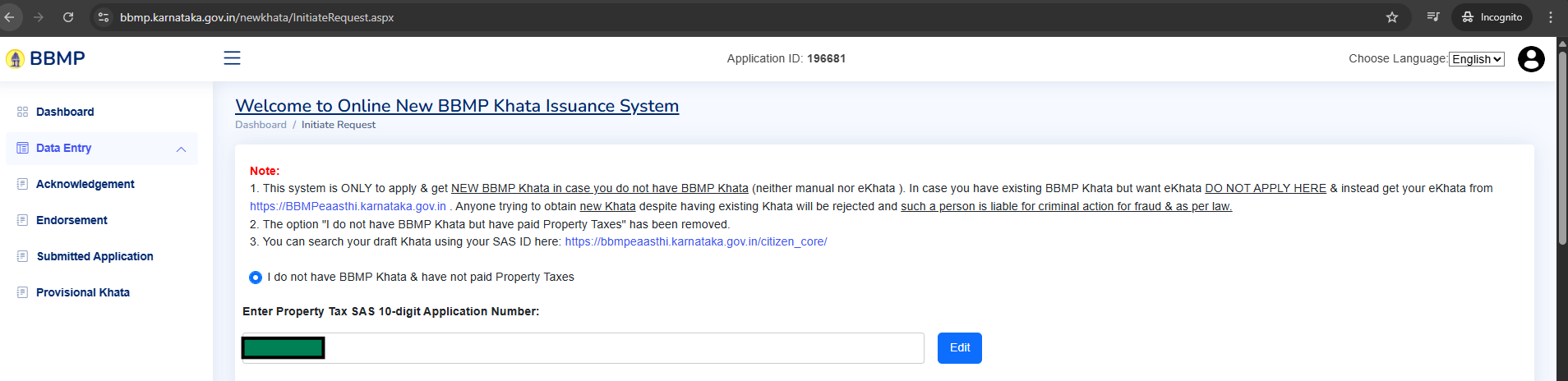
After login you will land on the "Welcome to Online New BBMP Khata Issuance System" page under Data Entry → Initiate Request. Read the important notes displayed on screen carefully. Select "I do not have BBMP Khata & have not paid Property Taxes".
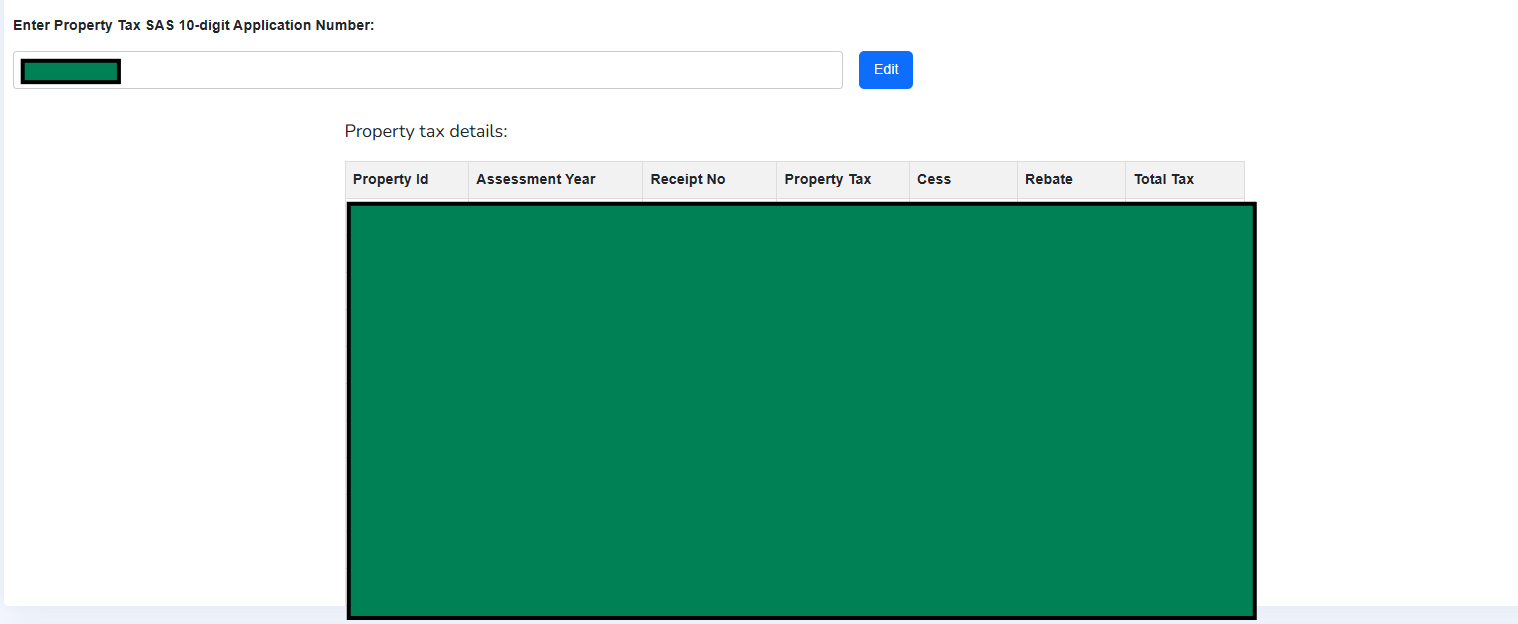
Enter your 10-digit Property Tax SAS Application Number in the field provided and click the "Edit" button. The SAS number is the same as the "Application No" printed on your BBMP property tax receipt.
ಲಾಗಿನ್ ನಂತರ Data Entry → Initiate Request ಅಡಿ "Welcome to Online New BBMP Khata Issuance System" ಪುಟ ತೆರೆಯುತ್ತದೆ. ಸ್ಕ್ರೀನ್ನಲ್ಲಿ ತೋರಿಸಿದ ಮಹತ್ವದ ಸೂಚನೆಗಳನ್ನು ಓದಿ. "I do not have BBMP Khata & have not paid Property Taxes" ಆಯ್ಕೆ ಮಾಡಿ.
ನೀಡಿದ ಕ್ಷೇತ್ರದಲ್ಲಿ ನಿಮ್ಮ 10 ಅಂಕಿಯ ಆಸ್ತಿ ತೆರಿಗೆ SAS ಅರ್ಜಿ ಸಂಖ್ಯೆ ನಮೂದಿಸಿ "Edit" ಗುಂಡಿ ಒತ್ತಿ. SAS ಸಂಖ್ಯೆ ನಿಮ್ಮ BBMP ಆಸ್ತಿ ತೆರಿಗೆ ರಸೀದಿಯಲ್ಲಿ "Application No" ಎಂದು ಮುದ್ರಿತವಾಗಿರುತ್ತದೆ.
Step 5: Verify the fetched property tax details
ಹಂತ 5: ತೆಗೆಯಲಾದ ಆಸ್ತಿ ತೆರಿಗೆ ವಿವರ ಪರಿಶೀಲಿಸಿ
On entering the correct SAS Application Number, the portal will fetch and display your Property Tax Details, a table showing the Property ID, Assessment Year, Receipt Number, Property Tax amount, Cess, Rebate, and Total Tax paid for each year. Review these details to confirm you are working on the correct property.
ಸರಿಯಾದ SAS ಅರ್ಜಿ ಸಂಖ್ಯೆ ನಮೂದಿಸಿದ ನಂತರ ಪೋರ್ಟಲ್ ನಿಮ್ಮ ಆಸ್ತಿ ತೆರಿಗೆ ವಿವರ ಲೋಡ್ ಮಾಡಿ ತೋರಿಸುತ್ತದೆ. Property ID, ಮುಲ್ಯಮಾಪನ ವರ್ಷ, ರಸೀದಿ ಸಂಖ್ಯೆ, ಆಸ್ತಿ ತೆರಿಗೆ ಮೊತ್ತ, ಸೆಸ್, ರಿಬೇಟ್, ಒಟ್ಟು ತೆರಿಗೆ ಕೋಷ್ಟಕ. ಇವು ಸರಿಯಾದ ಆಸ್ತಿಯ ವಿವರ ಎಂದು ಪರಿಶೀಲಿಸಿ.
Step 6: Fill property details and pin the exact location on the map
ಹಂತ 6: ಆಸ್ತಿ ವಿವರ ಭರ್ತಿ ಮಾಡಿ ಮತ್ತು ನಕ್ಷೆಯಲ್ಲಿ ನಿಖರ ಸ್ಥಳ ಗುರುತಿಸಿ
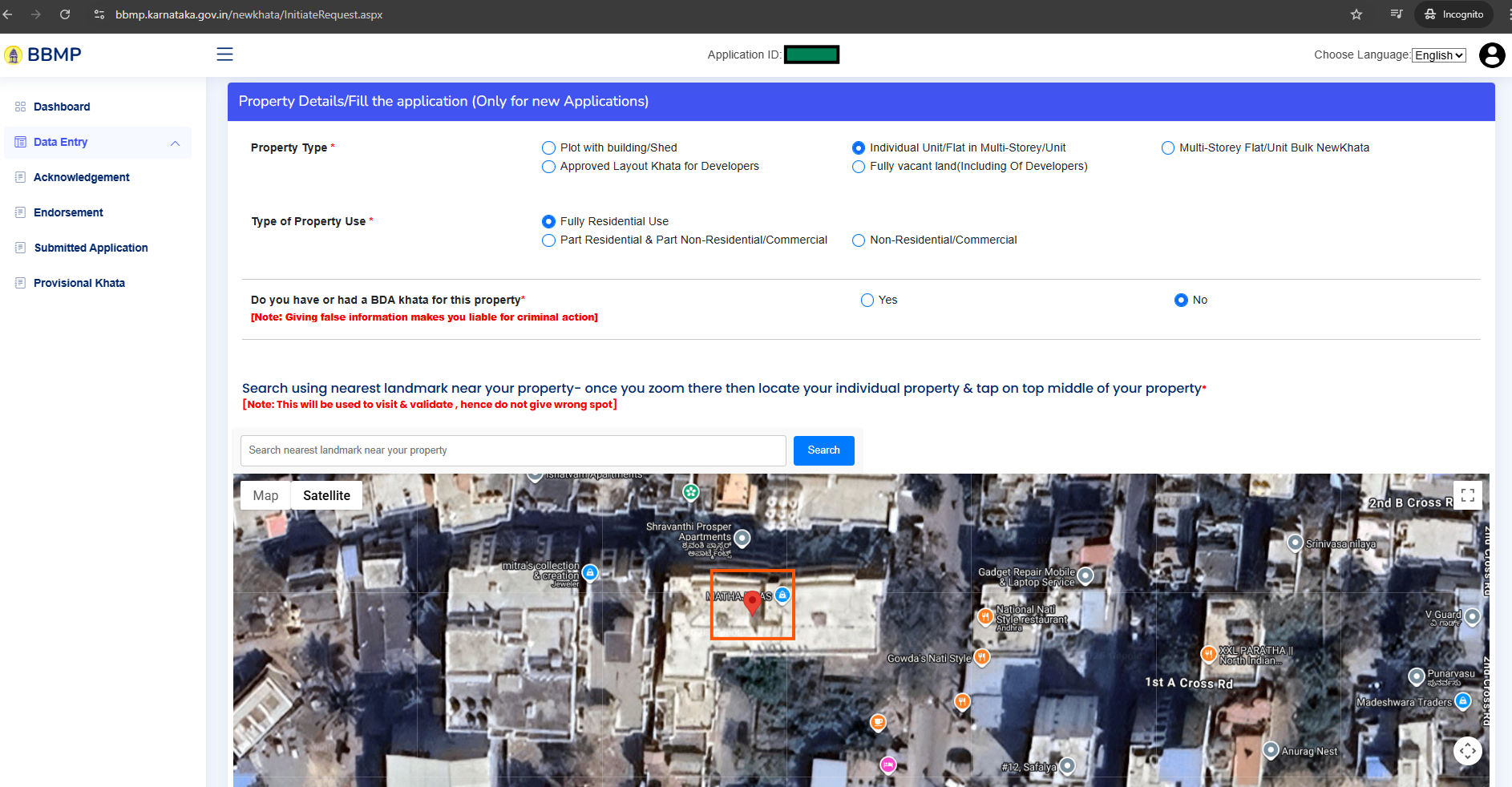
Fill the "Property Details / Fill the application" form:
"Property Details / Fill the application" ಫಾರ್ಮ್ ಭರ್ತಿ ಮಾಡಿ:
- ▸ Property Type: Select the appropriate type, e.g. "Individual Unit/Flat in Multi-Storey/Unit" ಆಸ್ತಿ ಪ್ರಕಾರ: ಸೂಕ್ತ ಪ್ರಕಾರ ಆಯ್ಕೆ ಮಾಡಿ, ಉದಾ. "Individual Unit/Flat in Multi-Storey/Unit"
- ▸ Type of Property Use: e.g. "Fully Residential Use" ಆಸ್ತಿ ಬಳಕೆ ಪ್ರಕಾರ: ಉದಾ. "Fully Residential Use"
- ▸ BDA Khata: Choose "Yes" or "No", whether you have or had a BDA khata for this property. Note: giving false information makes you liable for criminal action. BDA ಖಾತ: "Yes" ಅಥವಾ "No" ಆಯ್ಕೆ ಮಾಡಿ. ಈ ಆಸ್ತಿಗೆ BDA ಖಾತ ಇದ್ದರೆ / ಇದ್ದಿದ್ದರೆ. ತಪ್ಪು ಮಾಹಿತಿ ನೀಡಿದರೆ ಕ್ರಿಮಿನಲ್ ಕ್ರಮ.
Next, locate your property on the satellite map. Type the name of a nearby landmark or street in the search box and click "Search". The map will zoom to that area. Zoom in further using the "+" button and then click exactly on top of your property to drop the red pin. Once pinned, the property's address, Latitude, and Longitude will appear below the map. Verify that these match the Latitude and Longitude shown in your GPS photo from Step 1 (accurate to at least 4 decimal places is sufficient).
ನಂತರ ಉಪಗ್ರಹ ನಕ್ಷೆಯಲ್ಲಿ ನಿಮ್ಮ ಆಸ್ತಿ ಹುಡುಕಿ. ಹತ್ತಿರದ ಲ್ಯಾಂಡ್ಮಾರ್ಕ್ ಅಥವಾ ಬೀದಿ ಹೆಸರು ಹುಡುಕಾಟ ಪೆಟ್ಟಿಗೆಯಲ್ಲಿ ಟೈಪ್ ಮಾಡಿ "Search" ಕ್ಲಿಕ್ ಮಾಡಿ. "+" ಗುಂಡಿಯಿಂದ ಜೂಮ್ ಮಾಡಿ ನಿಮ್ಮ ಆಸ್ತಿ ಮೇಲೆ ಸರಿಯಾಗಿ ಕ್ಲಿಕ್ ಮಾಡಿ ಕೆಂಪು ಪಿನ್ ಇಡಿ. ಪಿನ್ ಇಟ್ಟ ನಂತರ ವಿಳಾಸ, ಅಕ್ಷಾಂಶ ಮತ್ತು ರೇಖಾಂಶ ಕಾಣಿಸುತ್ತವೆ. ಇವು ಹಂತ 1ರ GPS ಫೋಟೋದ ಅಕ್ಷಾಂಶ-ರೇಖಾಂಶದೊಂದಿಗೆ ಹೊಂದಾಣಿಕೆ ಆಗಬೇಕು (ಕನಿಷ್ಠ 4 ದಶಮಾಂಶ ಅಂಕೆ).
Step 7: Select zone, ward, and street, then upload the GPS photo
ಹಂತ 7: ಝೋನ್, ವಾರ್ಡ್, ರಸ್ತೆ ಆಯ್ಕೆ ಮಾಡಿ GPS ಫೋಟೋ ಅಪ್ಲೋಡ್ ಮಾಡಿ
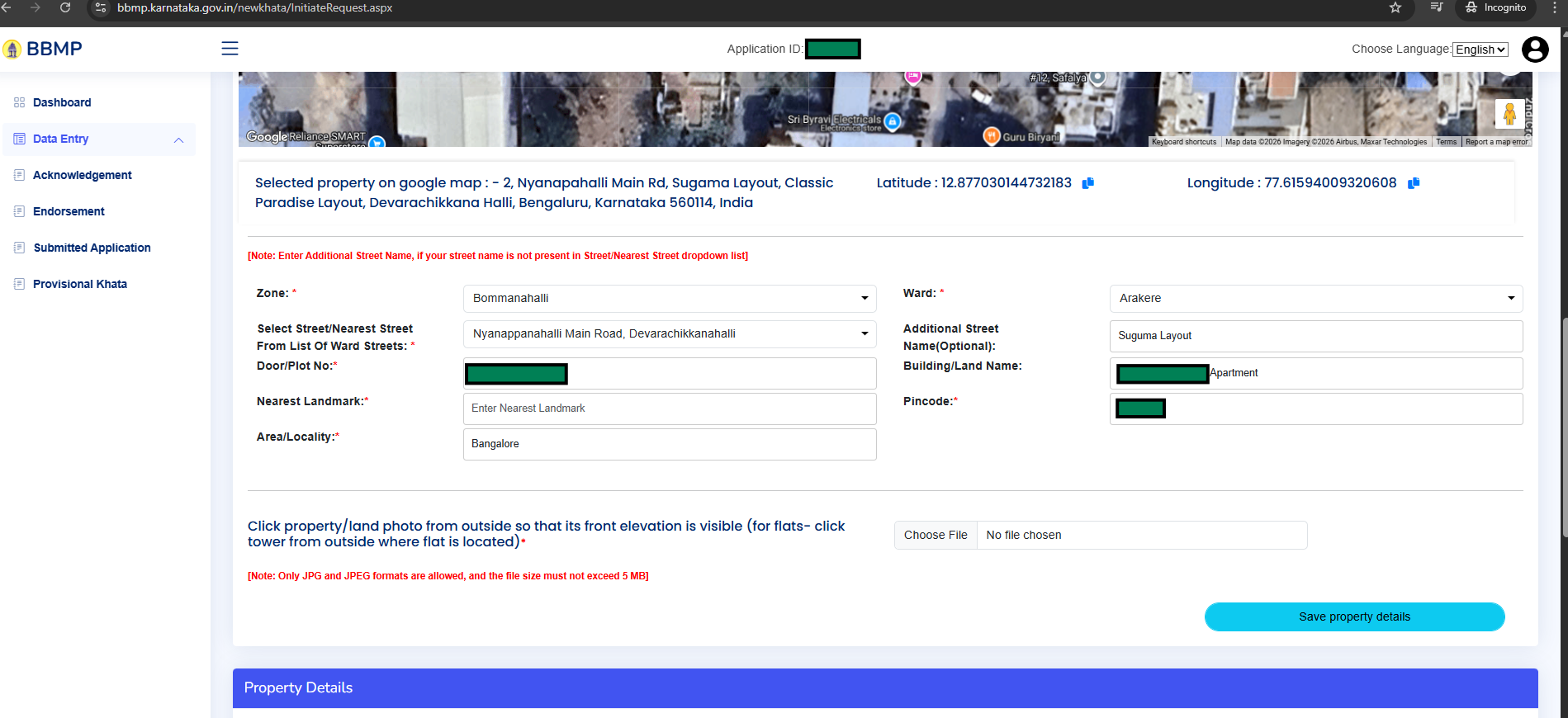
After pinpointing the property on the map, the page shows the selected address with its Latitude and Longitude. Below that, select the correct Zone, Ward, and Street/Nearest Street from the dropdown menus. The options available are based on the location you pinned. Fill in the Door/Plot Number, Building/Land Name, Nearest Landmark, Pincode, and Area/Locality fields.
Then upload the GPS property photo of the building's front elevation (the photo you took in Step 1 using GPSMapCamera). Only JPG/JPEG format is accepted and the file must not exceed 5 MB. Once all fields are complete, click "Save property details". This will generate an Application ID; you can access this application from your dashboard even after logging out and back in later.
ನಕ್ಷೆಯಲ್ಲಿ ಆಸ್ತಿ ಗುರುತಿಸಿದ ನಂತರ ಆಯ್ಕೆ ಮಾಡಿದ ವಿಳಾಸ, ಅಕ್ಷಾಂಶ ಮತ್ತು ರೇಖಾಂಶ ತೋರಿಸುತ್ತದೆ. ಕೆಳಗೆ ಡ್ರಾಪ್ಡೌನ್ ಮೆನ್ಯೂಗಳಿಂದ ಸರಿಯಾದ ಝೋನ್, ವಾರ್ಡ್, ಮತ್ತು ರಸ್ತೆ/ಹತ್ತಿರದ ರಸ್ತೆ ಆಯ್ಕೆ ಮಾಡಿ. ಡೋರ್/ಪ್ಲಾಟ್ ಸಂಖ್ಯೆ, ಕಟ್ಟಡ/ಜಮೀನು ಹೆಸರು, ಹತ್ತಿರದ ಲ್ಯಾಂಡ್ಮಾರ್ಕ್, ಪಿನ್ಕೋಡ್ ನಮೂದಿಸಿ.
ನಂತರ ಕಟ್ಟಡದ ಮುಂಭಾಗದ GPS ಆಸ್ತಿ ಫೋಟೋ (ಹಂತ 1ರಲ್ಲಿ GPSMapCamera ನಿಂದ ತೆಗೆದ ಫೋಟೋ) ಅಪ್ಲೋಡ್ ಮಾಡಿ. ಕೇವಲ JPG/JPEG ಫಾರ್ಮ್ಯಾಟ್, ಫೈಲ್ 5 MB ಮೀರಬಾರದು. ಎಲ್ಲ ಕ್ಷೇತ್ರ ಭರ್ತಿ ಮಾಡಿದ ನಂತರ "Save property details" ಕ್ಲಿಕ್ ಮಾಡಿ. ಇದು Application ID ರಚಿಸುತ್ತದೆ. ಲಾಗ್ಔಟ್ ಮಾಡಿ ಮರಳಿ ಲಾಗಿನ್ ಮಾಡಿದರೂ ಡ್ಯಾಶ್ಬೋರ್ಡ್ನಿಂದ ಈ ಅರ್ಜಿ ಪ್ರವೇಶಿಸಬಹುದು.
Step 8: Enter the registered sale deed number and fetch deed data
ಹಂತ 8: ನೋಂದಾಯಿತ ಮಾರಾಟ ದಾಖಲೆ ಸಂಖ್ಯೆ ನೀಡಿ ವಿವರ ತೆಗೆಯಿರಿ
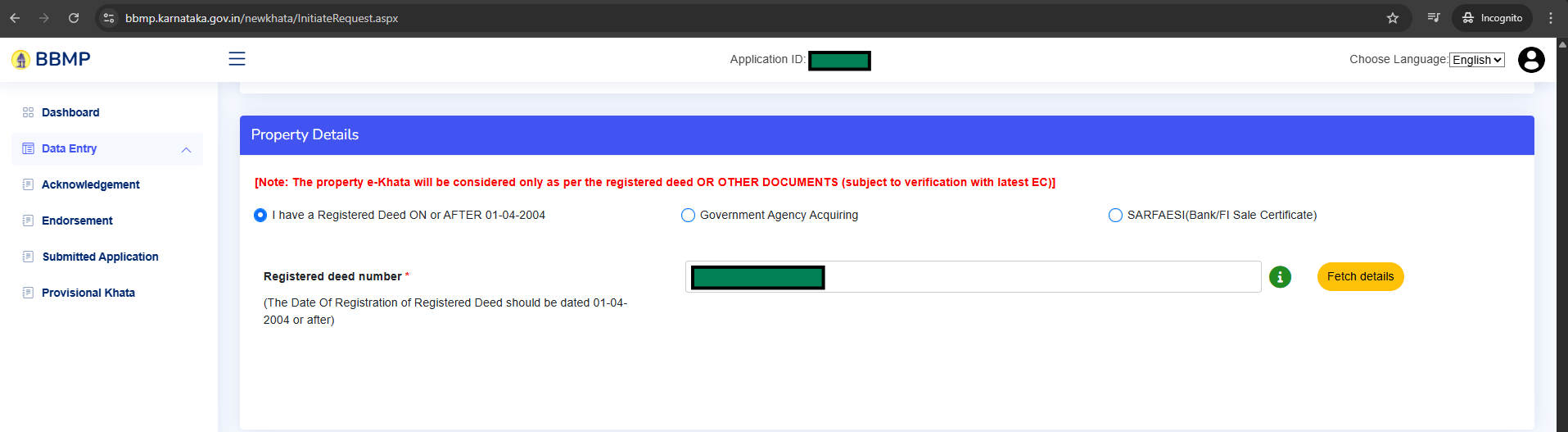
In the "Property Details" section, select
"I have a Registered Deed ON or AFTER 01-04-2004". Enter your
Registered Deed Number (e.g. JAY-1-XXXXX-2013-14)
in the field provided and click the "Fetch details" button.
The portal will retrieve a scanned copy (black & white) of your property sale deed
along with other registration details from the Sub-Registrar's records.
Verify that the fetched details match your sale deed.
"Property Details" ವಿಭಾಗದಲ್ಲಿ
"I have a Registered Deed ON or AFTER 01-04-2004" ಆಯ್ಕೆ ಮಾಡಿ.
ನಿಮ್ಮ ನೋಂದಾಯಿತ ದಾಖಲೆ ಸಂಖ್ಯೆ
(ಉದಾ. JAY-1-XXXXX-2013-14)
ನಮೂದಿಸಿ "Fetch details" ಕ್ಲಿಕ್ ಮಾಡಿ.
ಪೋರ್ಟಲ್ ಉಪ-ನೋಂದಣಾಧಿಕಾರಿ ದಾಖಲೆಗಳಿಂದ ನಿಮ್ಮ ಮಾರಾಟ ದಾಖಲೆಯ
ಸ್ಕ್ಯಾನ್ ಕಾಪಿ (ಕಪ್ಪು & ಬಿಳಿ) ತೆಗೆದುಕೊಳ್ಳುತ್ತದೆ. ವಿವರ ಸರಿಯಿದೆಯೇ ಎಂದು ಪರಿಶೀಲಿಸಿ.
Step 9: Enter the EC number and verify it through Aadhaar OTP
ಹಂತ 9: EC ಸಂಖ್ಯೆ ನೀಡಿ ಆಧಾರ್ OTP ಮೂಲಕ ಪರಿಶೀಲಿಸಿ
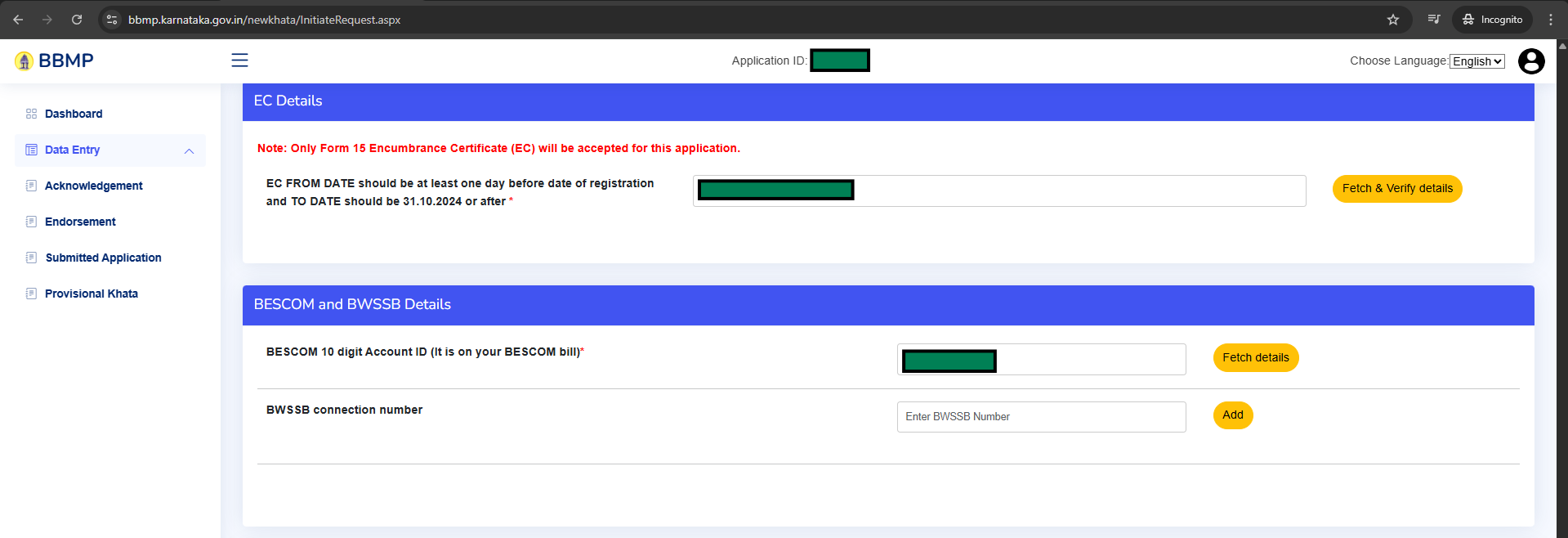
In the "EC Details" section, enter the Encumbrance Certificate number
you obtained in Step 2 (format:
BMH-EC-A-XXXXXXX-2025-26).
Click the "Fetch & Verify details" button. You will be prompted to
authenticate using your Aadhaar number and OTP sent to your Aadhaar-linked
mobile. Complete the Aadhaar OTP authentication and the portal will then fetch your EC details
directly from the Kaveri 2.0 portal.
"EC Details" ವಿಭಾಗದಲ್ಲಿ ಹಂತ 2ರಲ್ಲಿ ಪಡೆದ ಅಡಮಾನ ಪ್ರಮಾಣಪತ್ರ ಸಂಖ್ಯೆ
(ಫಾರ್ಮ್ಯಾಟ್:
BMH-EC-A-XXXXXXX-2025-26)
ನಮೂದಿಸಿ. "Fetch & Verify details" ಗುಂಡಿ ಒತ್ತಿ.
ನಿಮ್ಮ ಆಧಾರ್ ಸಂಖ್ಯೆ ಮತ್ತು OTP ಮೂಲಕ ದೃಢೀಕರಿಸಲು ಕೇಳಲ್ಪಡುತ್ತೀರಿ.
ಆಧಾರ್ OTP ದೃಢೀಕರಣ ಪೂರ್ಣಗೊಳಿಸಿ; ಪೋರ್ಟಲ್ ಕಾವೇರಿ 2.0 ಪೋರ್ಟಲ್ನಿಂದ EC ವಿವರ ತೆಗೆಯುತ್ತದೆ.
Step 10: Enter BESCOM details, preview, and submit
ಹಂತ 10: BESCOM ವಿವರ ನೀಡಿ, ಪೂರ್ವವೀಕ್ಷಣೆ ಮಾಡಿ ಸಲ್ಲಿಸಿ
In the "BESCOM and BWSSB Details" section, enter the 10-digit BESCOM Account ID (found on your electricity bill) and click "Fetch details". This fetches the electricity connection details including the Consumer Name; ideally this should match your name. If you have a BWSSB water connection, enter that number too (optional).
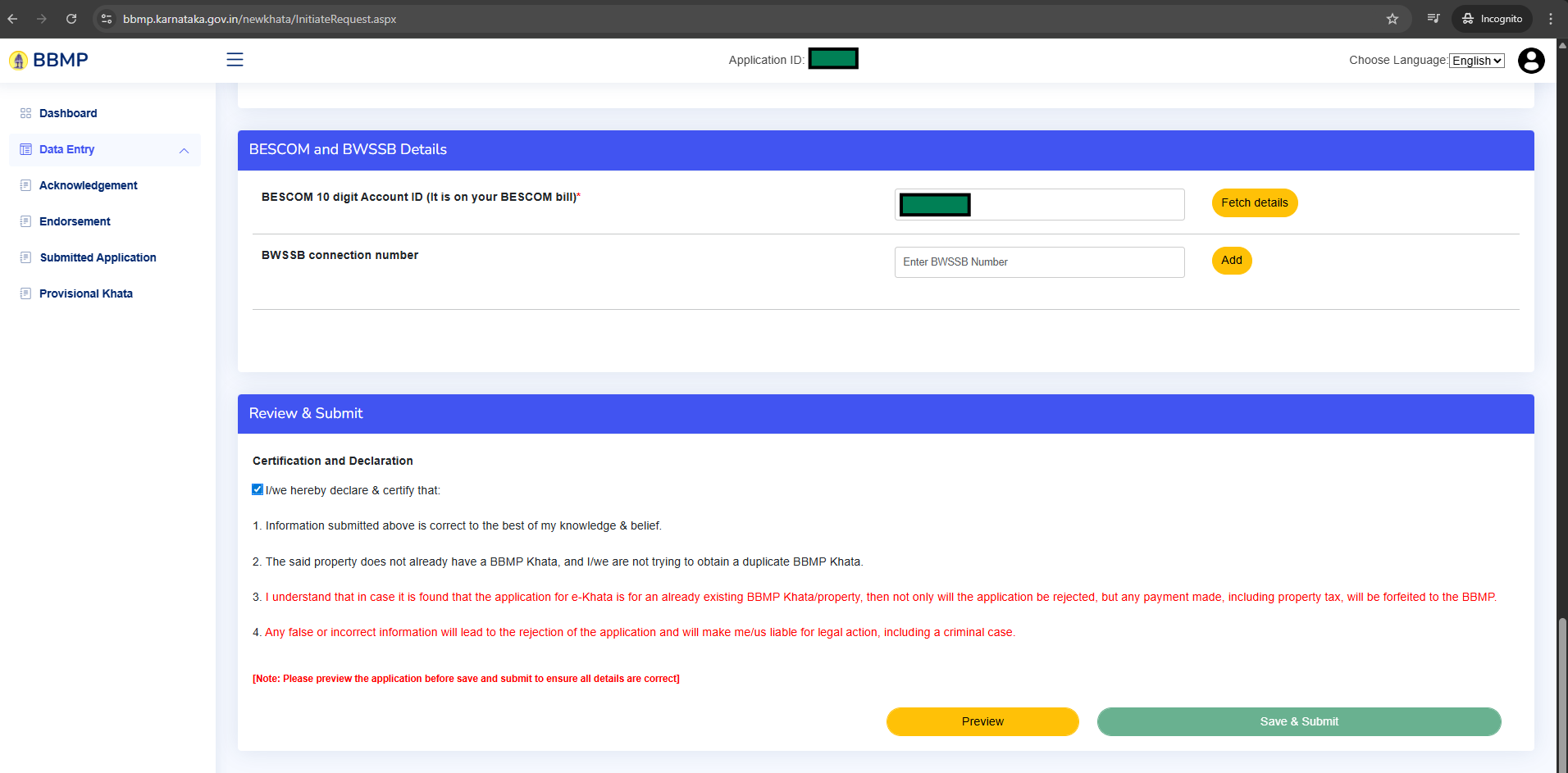
Scroll down to the "Review & Submit" section. Tick the Certification and Declaration checkbox. First click "Preview" to review your full application and ensure all details are correct. Then click "Save & Submit" to submit. Congratulations! Your part is done! The application is now sent to GBA/BBMP for processing. Track your application status and processing updates from the Dashboard.
"BESCOM and BWSSB Details" ವಿಭಾಗದಲ್ಲಿ ವಿದ್ಯುತ್ ಬಿಲ್ನಲ್ಲಿರುವ 10 ಅಂಕಿ BESCOM ಖಾತೆ ID ನಮೂದಿಸಿ "Fetch details" ಕ್ಲಿಕ್ ಮಾಡಿ. Consumer Name ಸೇರಿದಂತೆ ವಿದ್ಯುತ್ ಸಂಪರ್ಕ ವಿವರ ತೆಗೆಯಲ್ಪಡುತ್ತದೆ. BWSSB ಸಂಪರ್ಕ ಸಂಖ್ಯೆ ಸಹ ಸೇರಿಸಬಹುದು (ಐಚ್ಛಿಕ).
"Review & Submit" ವಿಭಾಗಕ್ಕೆ ಸ್ಕ್ರೋಲ್ ಮಾಡಿ. Certification and Declaration ಚೆಕ್ಬಾಕ್ಸ್ ಟಿಕ್ ಮಾಡಿ. ಮೊದಲು "Preview" ಕ್ಲಿಕ್ ಮಾಡಿ ಪೂರ್ಣ ಅರ್ಜಿ ಪರಿಶೀಲಿಸಿ. ನಂತರ "Save & Submit" ಕ್ಲಿಕ್ ಮಾಡಿ. ಅಭಿನಂದನೆ! ನಿಮ್ಮ ಕೆಲಸ ಮುಗಿಯಿತು! ಅರ್ಜಿ GBA/BBMP ಗೆ ಕಳಿಸಲ್ಪಟ್ಟಿದೆ. Dashboard ನಿಂದ ಅರ್ಜಿ ಸ್ಥಿತಿ ಟ್ರ್ಯಾಕ್ ಮಾಡಿ.
Step 11: Review the draft eKhata created by the portal
ಹಂತ 11: ಪೋರ್ಟಲ್ ರಚಿಸಿದ ಡ್ರಾಫ್ಟ್ ಇ-ಖಾತ ಪರಿಶೀಲಿಸಿ
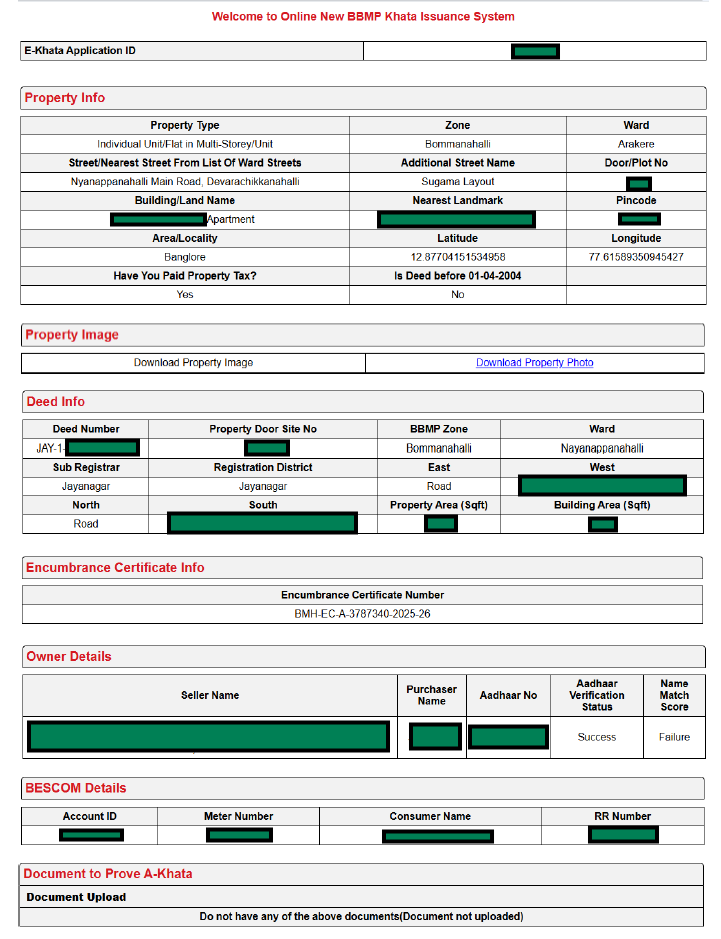
The screenshot below shows a Draft eKhata for reference. It summarises all the data you entered: Property Info (type, zone, ward, street, latitude/longitude), Property Image download link, Deed Info (deed number, sub-registrar, registration district, cardinal directions, property area, building area), Encumbrance Certificate Info (certificate number), Owner Details (seller name, purchaser name, Aadhaar verification status and name-match score), BESCOM Details (account ID, meter number, consumer name, RR number), and Document Upload status. This draft is accessible from your portal Dashboard after submission.
ಕೆಳಗಿನ ಸ್ಕ್ರೀನ್ಶಾಟ್ ಉಲ್ಲೇಖಕ್ಕಾಗಿ ಡ್ರಾಫ್ಟ್ ಇ-ಖಾತ ತೋರಿಸುತ್ತದೆ. ನಮೂದಿಸಿದ ಎಲ್ಲ ಡೇಟಾ ಒಟ್ಟುಗೂಡಿಸಿ ತೋರಿಸಲಾಗಿದೆ: ಆಸ್ತಿ ಮಾಹಿತಿ (ಪ್ರಕಾರ, ಝೋನ್, ವಾರ್ಡ್, ರಸ್ತೆ, ಅಕ್ಷಾಂಶ/ರೇಖಾಂಶ), ಆಸ್ತಿ ಚಿತ್ರ ಡೌನ್ಲೋಡ್ ಲಿಂಕ್, ದಾಖಲೆ ಮಾಹಿತಿ (ದಾಖಲೆ ಸಂಖ್ಯೆ, ಉಪ-ನೋಂದಣಾಧಿಕಾರಿ, ನೋಂದಣಿ ಜಿಲ್ಲೆ, ಆಸ್ತಿ ಪ್ರದೇಶ), EC ಮಾಹಿತಿ, ಮಾಲೀಕ ವಿವರ, BESCOM ವಿವರ. ಸಲ್ಲಿಕೆ ನಂತರ ಪೋರ್ಟಲ್ Dashboard ನಿಂದ ಈ ಡ್ರಾಫ್ಟ್ ಪ್ರವೇಶಿಸಬಹುದು.
Step 12: Understand the issued eKhata document and ₹1,956 fee
ಹಂತ 12: ನೀಡಲಾದ ಇ-ಖಾತ ದಾಖಲೆ ಮತ್ತು ₹1,956 ಶುಲ್ಕ ಅರ್ಥಮಾಡಿಕೊಳ್ಳಿ
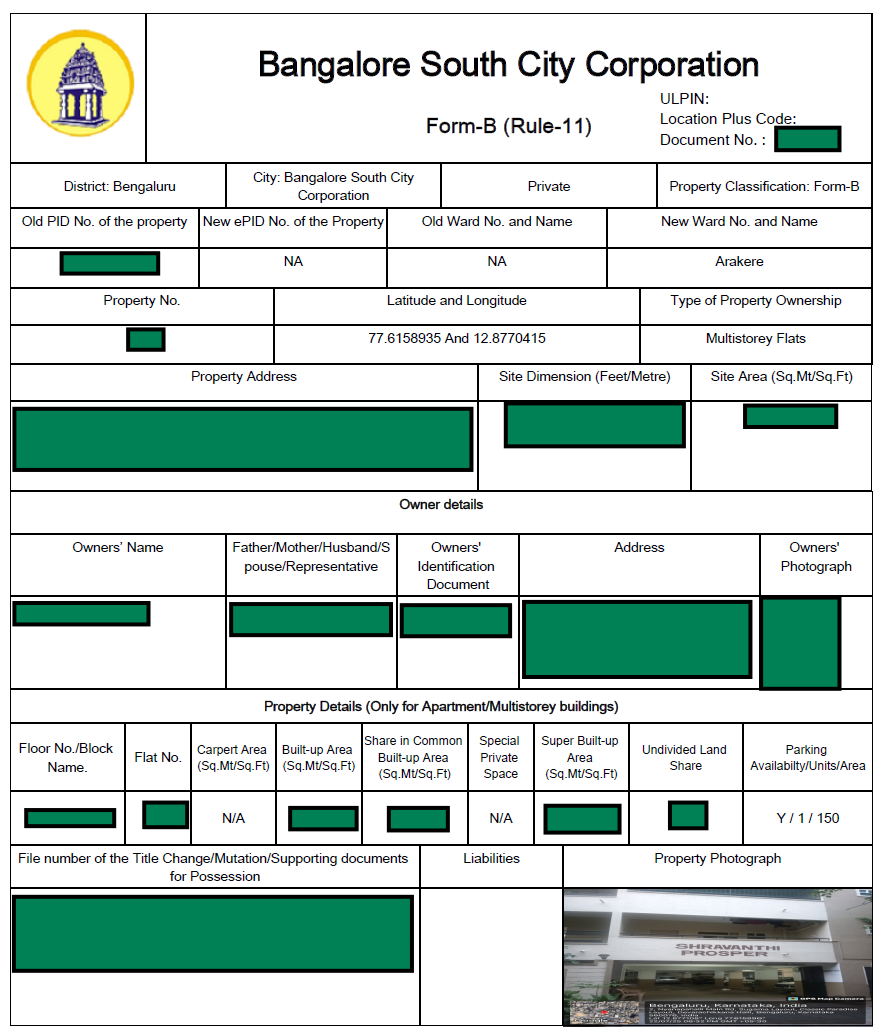
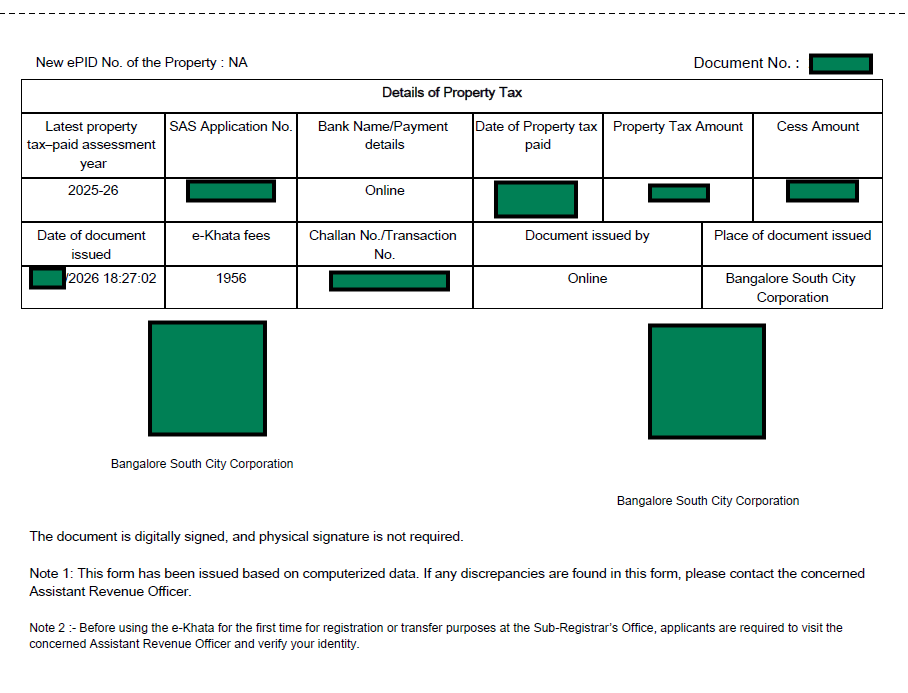
The screenshots below show a real eKhata (redacted) issued by Bangalore South City Corporation in Form-B (Rule-11).
Page 1 contains: ULPIN, Location Plus Code, Document No., District, City Corporation, Property Classification (Form-B), Old/New PID numbers, Ward, Property No., Latitude & Longitude, Type of Property Ownership (Multistorey Flats), Property Address, Site Dimension, Site Area, Owner Details (owner's name, identification document, address, owner photograph), Property Details for apartments (floor/block, flat no., carpet area, built-up area, share in common built-up area, super built-up area, undivided land share, parking), and the GPS Property Photograph.
Page 2 shows: New ePID number, Details of Property Tax (latest assessment year, SAS Application No., bank/payment details, date of payment, tax amount, cess), eKhata fee (₹1956), date of document issuance, Challan/Transaction No., digital QR codes signed by Bangalore South City Corporation, and a note confirming the document is digitally signed (physical signature not required). Note 2 requires applicants to visit the Assistant Revenue Officer before using the eKhata for registration or transfer purposes for the first time.
ಕೆಳಗಿನ ಸ್ಕ್ರೀನ್ಶಾಟ್ಗಳು ಬೆಂಗಳೂರು ದಕ್ಷಿಣ ನಗರ ನಿಗಮ ನೀಡಿದ Form-B (Rule-11) ನೈಜ ಇ-ಖಾತ (ರಿಡ್ಯಾಕ್ಟೆಡ್) ತೋರಿಸುತ್ತವೆ.
ಪುಟ 1: ULPIN, Location Plus Code, ದಾಖಲೆ ಸಂಖ್ಯೆ, ಜಿಲ್ಲೆ, ನಗರ ನಿಗಮ, Property Classification (Form-B), ಹಳೆ/ಹೊಸ PID ಸಂಖ್ಯೆ, ವಾರ್ಡ್, ಆಸ್ತಿ ಸಂಖ್ಯೆ, ಅಕ್ಷಾಂಶ & ರೇಖಾಂಶ, ಮಾಲಿಕತ್ವ ಪ್ರಕಾರ, ಆಸ್ತಿ ವಿಳಾಸ, ಸೈಟ್ ಆಯಾಮ, ಸೈಟ್ ಪ್ರದೇಶ, ಮಾಲೀಕ ವಿವರ, ಆಸ್ತಿ ಫೋಟೋ.
ಪುಟ 2: ಹೊಸ ePID ಸಂಖ್ಯೆ, ಆಸ್ತಿ ತೆರಿಗೆ ವಿವರ (ಮೌಲ್ಯಮಾಪನ ವರ್ಷ, SAS ಸಂಖ್ಯೆ, ತೆರಿಗೆ ಮೊತ್ತ), ಇ-ಖಾತ ಶುಲ್ಕ (₹1956), ನೀಡಿದ ದಿನಾಂಕ, ಡಿಜಿಟಲ್ QR ಕೋಡ್ಗಳು (ಬೆಂಗಳೂರು ದಕ್ಷಿಣ ನಗರ ನಿಗಮ ಡಿಜಿಟಲ್ ಸಹಿ), ಮತ್ತು ಭೌತಿಕ ಸಹಿ ಅಗತ್ಯ ಇಲ್ಲ ಎಂದು ಟಿಪ್ಪಣಿ.
📞 GBA eKhata Helpline: Need Help?
📞 GBA ಇ-ಖಾತ ಹೆಲ್ಪ್ಲೈನ್: ಸಹಾಯ ಬೇಕೇ?
9480683695
If you run into any query or issue while filling the eKhata application (login problems, SAS number not found, EC fetch errors, portal errors, or anything else), call this official GBA eKhata Helpline number for assistance.
ಇ-ಖಾತ ಅರ್ಜಿ ಭರ್ತಿ ಮಾಡುವಾಗ ಯಾವುದೇ ಪ್ರಶ್ನೆ ಅಥವಾ ಸಮಸ್ಯೆ ಬಂದರೆ (ಲಾಗಿನ್ ಸಮಸ್ಯೆ, SAS ಸಂಖ್ಯೆ ಸಿಗದಿದ್ದರೆ, EC ಲೋಡ್ ದೋಷ, ಪೋರ್ಟಲ್ ದೋಷ ಅಥವಾ ಮತ್ತಾವುದೇನು ಸಮಸ್ಯೆ), ಈ ಅಧಿಕೃತ GBA ಇ-ಖಾತ ಹೆಲ್ಪ್ಲೈನ್ ಸಂಖ್ಯೆಗೆ ಕರೆ ಮಾಡಿ.
All 3 Steps Complete!
ಮೂರೂ ಹಂತ ಪೂರ್ಣ!
Your eKhata application has been submitted to GBA/BBMP. Typical processing time is 25–60 working days. Track your application status on the portal Dashboard. Did this guide help you? Share your experience below!
ನಿಮ್ಮ ಇ-ಖಾತ ಅರ್ಜಿ GBA/BBMP ಗೆ ಸಲ್ಲಿಸಲ್ಪಟ್ಟಿದೆ. ಸಾಮಾನ್ಯ ಪ್ರಕ್ರಿಯೆ ಅವಧಿ 25–60 ಕೆಲಸದ ದಿನ. ಈ ಮಾರ್ಗದರ್ಶಿ ಸಹಾಯಕಾರಿಯಾಯಿತೇ? ನಿಮ್ಮ ಅನುಭವ ಹಂಚಿಕೊಳ್ಳಿ!
Share Your Feedback → ನಿಮ್ಮ ಅನುಭವ ಹಂಚಿಕೊಳ್ಳಿ →