Step 2: How to Get FORM-15 EC on Kaveri 2.0 ಹಂತ 2: ಕಾವೇರಿ 2.0 ನಲ್ಲಿ FORM-15 EC ಹೇಗೆ ಪಡೆಯುವುದು
Only FORM-15 Online EC is accepted in the eKhata portal. You must obtain the digitally signed PDF from Kaveri 2.0, usually for about ₹100 to ₹200, before you can finish the new BBMP/GBA eKhata application.
ಇ-ಖಾತ ಪೋರ್ಟಲ್ನಲ್ಲಿ ಕೇವಲ FORM-15 Online EC ಮಾತ್ರ ಮಾನ್ಯ. ಹೊಸ BBMP/GBA ಇ-ಖಾತ ಅರ್ಜಿ ಪೂರ್ಣಗೊಳಿಸುವ ಮೊದಲು ಕಾವೇರಿ 2.0 ನಿಂದ ಡಿಜಿಟಲ್ ಸಹಿ ಹೊಂದಿದ PDF ಅನ್ನು, ಸಾಮಾನ್ಯವಾಗಿ ₹100 ರಿಂದ ₹200 ವೆಚ್ಚದಲ್ಲಿ, ಪಡೆಯಬೇಕು.
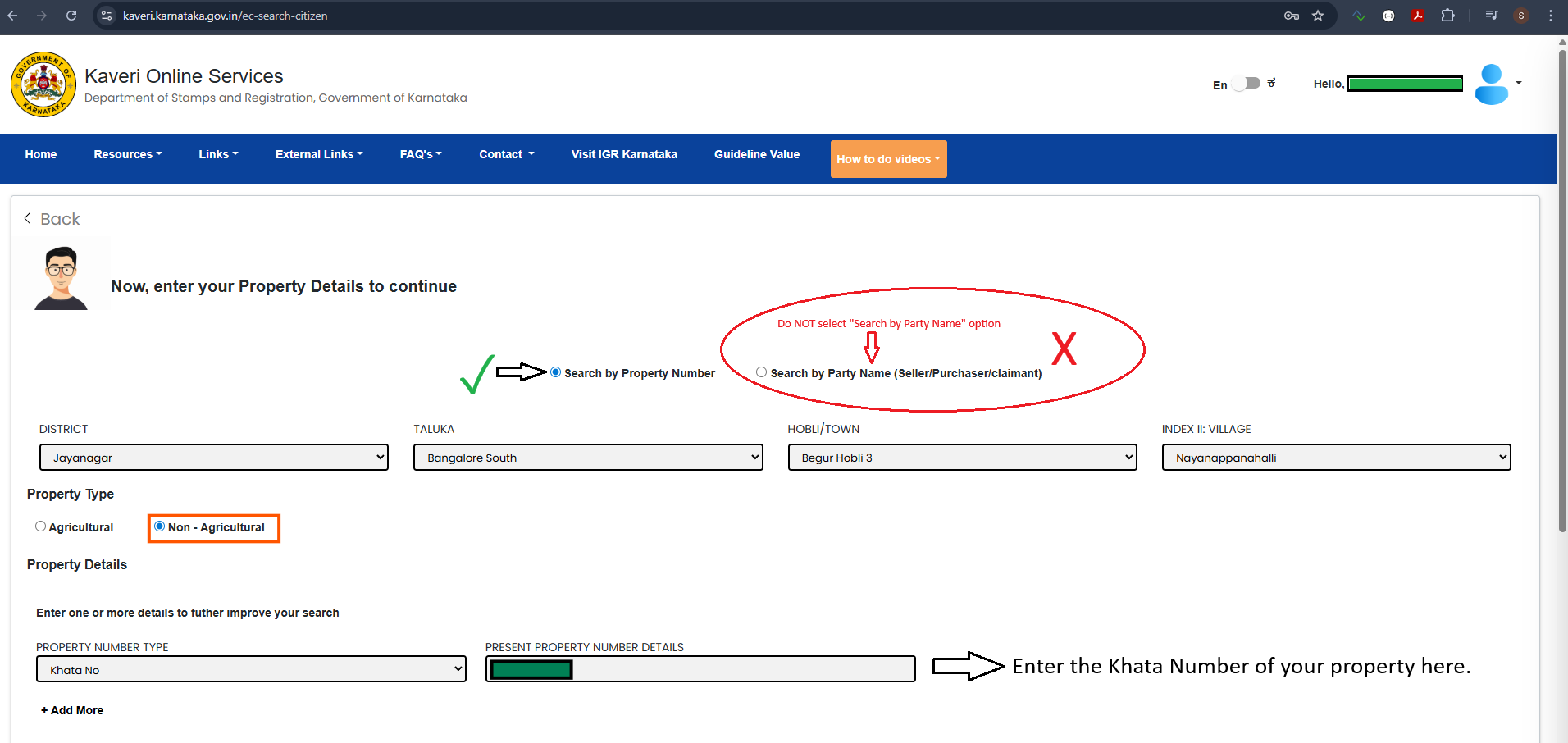
⚠️ You MUST apply for Online EC (FORM-15) and not FORM-17. If you use "Search by Party Name" you will get FORM-17, which will be rejected in the eKhata application. Always use "Search by Property Number".
⚠️ Online EC (FORM-15) ಅರ್ಜಿ ಸಲ್ಲಿಸಬೇಕು, FORM-17 ಅಲ್ಲ. "Search by Party Name" ಬಳಸಿದರೆ FORM-17 ಸಿಗುತ್ತದೆ, ಅದನ್ನು ಇ-ಖಾತ ಅರ್ಜಿಯಲ್ಲಿ ತಿರಸ್ಕರಿಸಲಾಗುತ್ತದೆ. ಯಾವಾಗಲೂ "Search by Property Number" ಬಳಸಿ.
Step 1: Open the official Kaveri 2.0 portal
ಹಂತ 1: ಅಧಿಕೃತ ಕಾವೇರಿ 2.0 ಪೋರ್ಟಲ್ ತೆರೆಯಿರಿ
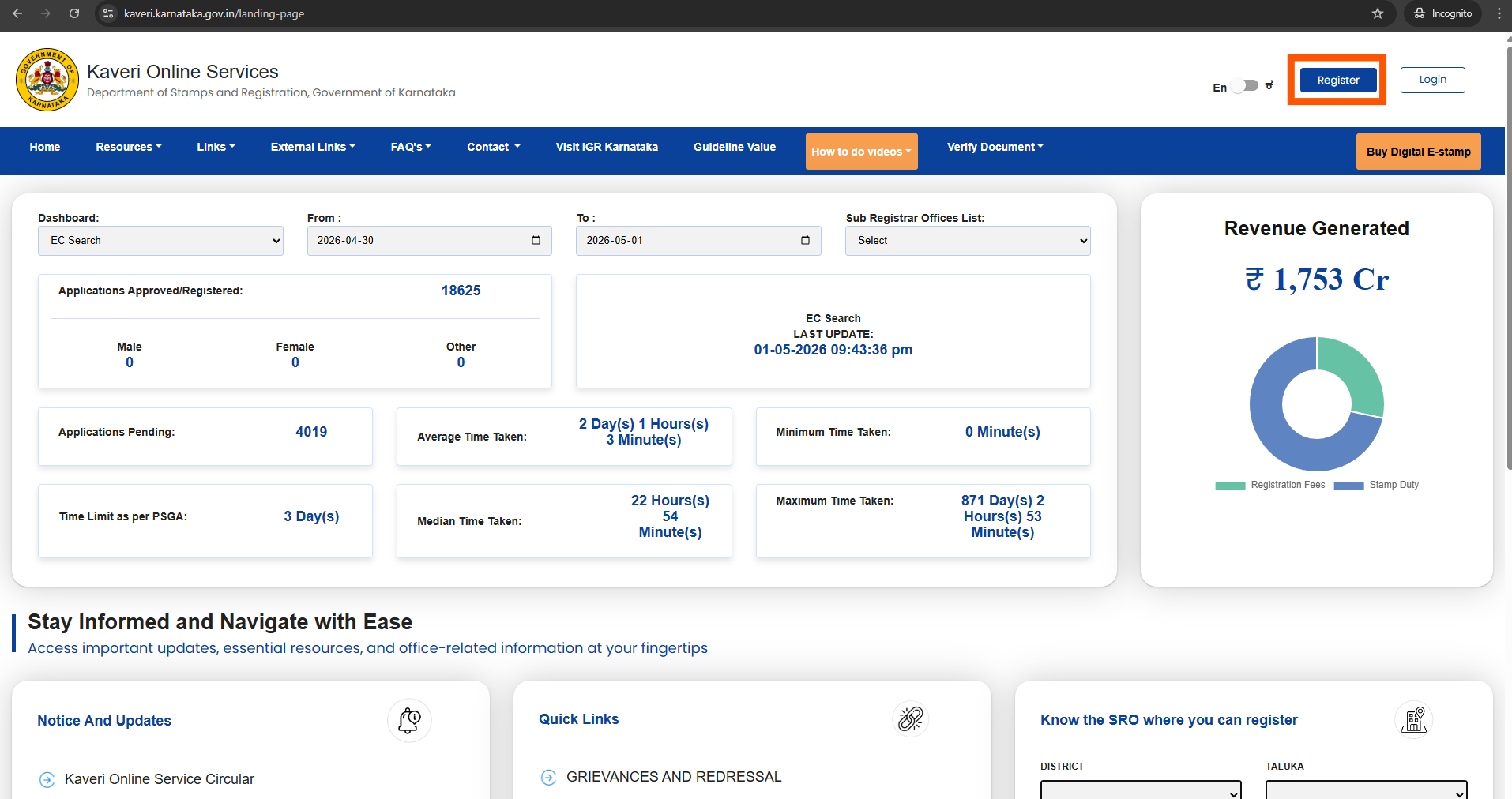
Open a browser and go to kaveri.karnataka.gov.in. This is the official Karnataka Stamps and Registration portal. Click the "Register" button at the top-right corner to create a new account. Skip this if you already have a Kaveri account and proceed to Step 3.
ಬ್ರೌಸರ್ ತೆರೆದು kaveri.karnataka.gov.in ಗೆ ಹೋಗಿ. ಇದು ಕರ್ನಾಟಕ ಸ್ಟ್ಯಾಂಪ್ಸ್ ಮತ್ತು ನೋಂದಣಿ ಅಧಿಕೃತ ಪೋರ್ಟಲ್. ಮೇಲ್ಭಾಗ ಬಲ ಮೂಲೆಯಲ್ಲಿ "Register" ಗುಂಡಿ ಒತ್ತಿ ಖಾತೆ ರಚಿಸಿ. ಈಗಾಗಲೇ ಕಾವೇರಿ ಖಾತೆ ಇದ್ದರೆ ಹಂತ 3 ಗೆ ಹೋಗಿ.
Step 2: Create a Kaveri account
ಹಂತ 2: ಕಾವೇರಿ ಖಾತೆ ರಚಿಸಿ
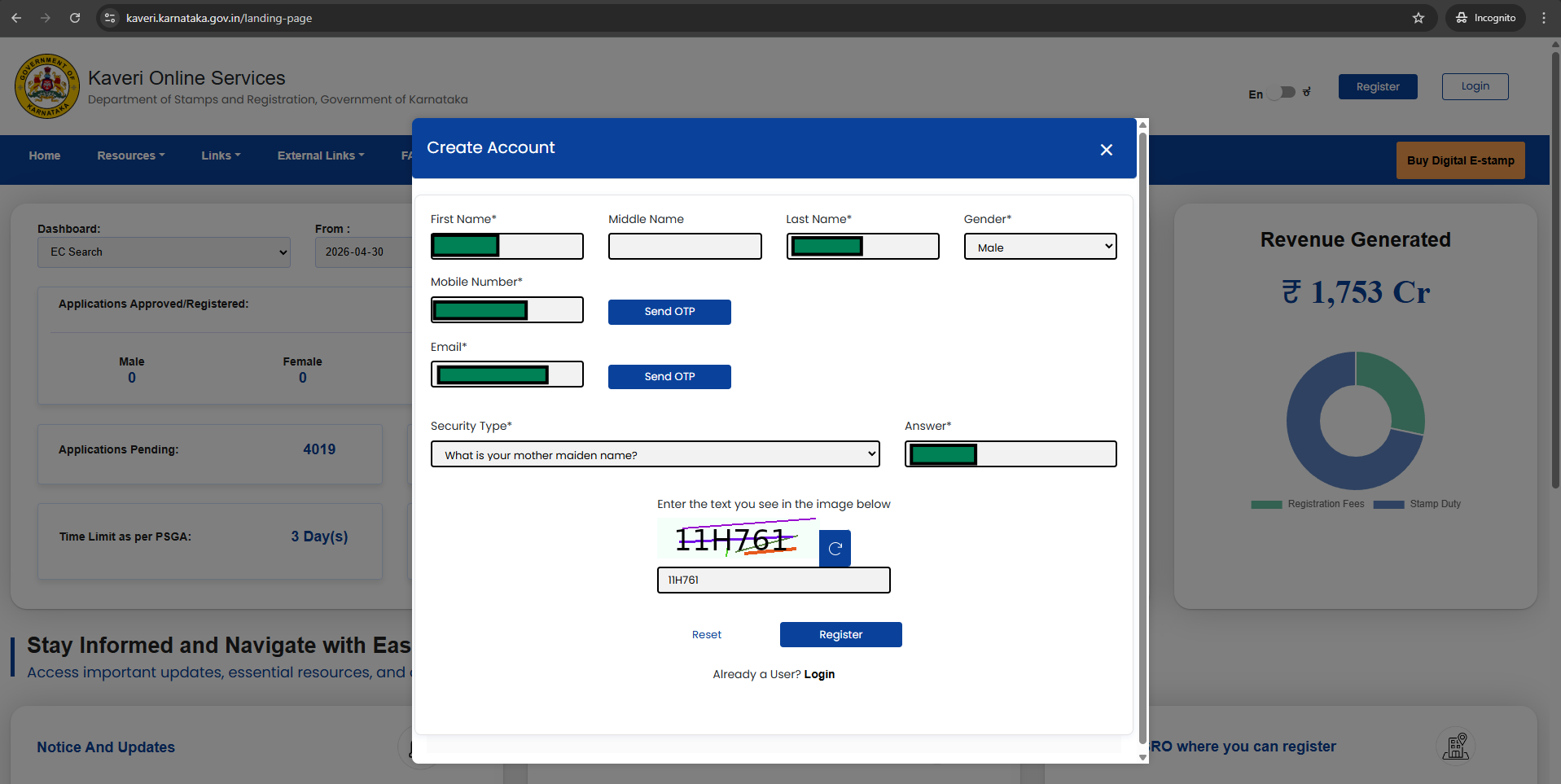
Fill in the "Create Account" form:
"Create Account" ಫಾರ್ಮ್ ತುಂಬಿ:
- Enter First Name and Last Name
- Enter your Mobile Number → click "Send OTP" → enter the OTP to verify
- Enter your Email → click "Send OTP" → enter the OTP to verify
- Choose a Security Type (security question) from the dropdown and type your answer
- Enter the captcha text shown in the image
- Click "Register"
- First Name ಮತ್ತು Last Name ನಮೂದಿಸಿ
- Mobile Number ನಮೂದಿಸಿ → "Send OTP" ಒತ್ತಿ → OTP ದೃಢೀಕರಿಸಿ
- Email ನಮೂದಿಸಿ → "Send OTP" ಒತ್ತಿ → OTP ದೃಢೀಕರಿಸಿ
- ಡ್ರಾಪ್ಡೌನ್ನಿಂದ Security Type ಆಯ್ಕೆ ಮಾಡಿ, ಉತ್ತರ ನಮೂದಿಸಿ
- ಚಿತ್ರದಲ್ಲಿ ತೋರಿಸಿದ captcha ಅಕ್ಷರಗಳನ್ನು ನಮೂದಿಸಿ
- "Register" ಒತ್ತಿ
Step 3: Log in with your registered email and password
ಹಂತ 3: ನೋಂದಾಯಿತ ಇಮೇಲ್ ಮತ್ತು ಪಾಸ್ವರ್ಡ್ನಿಂದ ಲಾಗಿನ್ ಮಾಡಿ
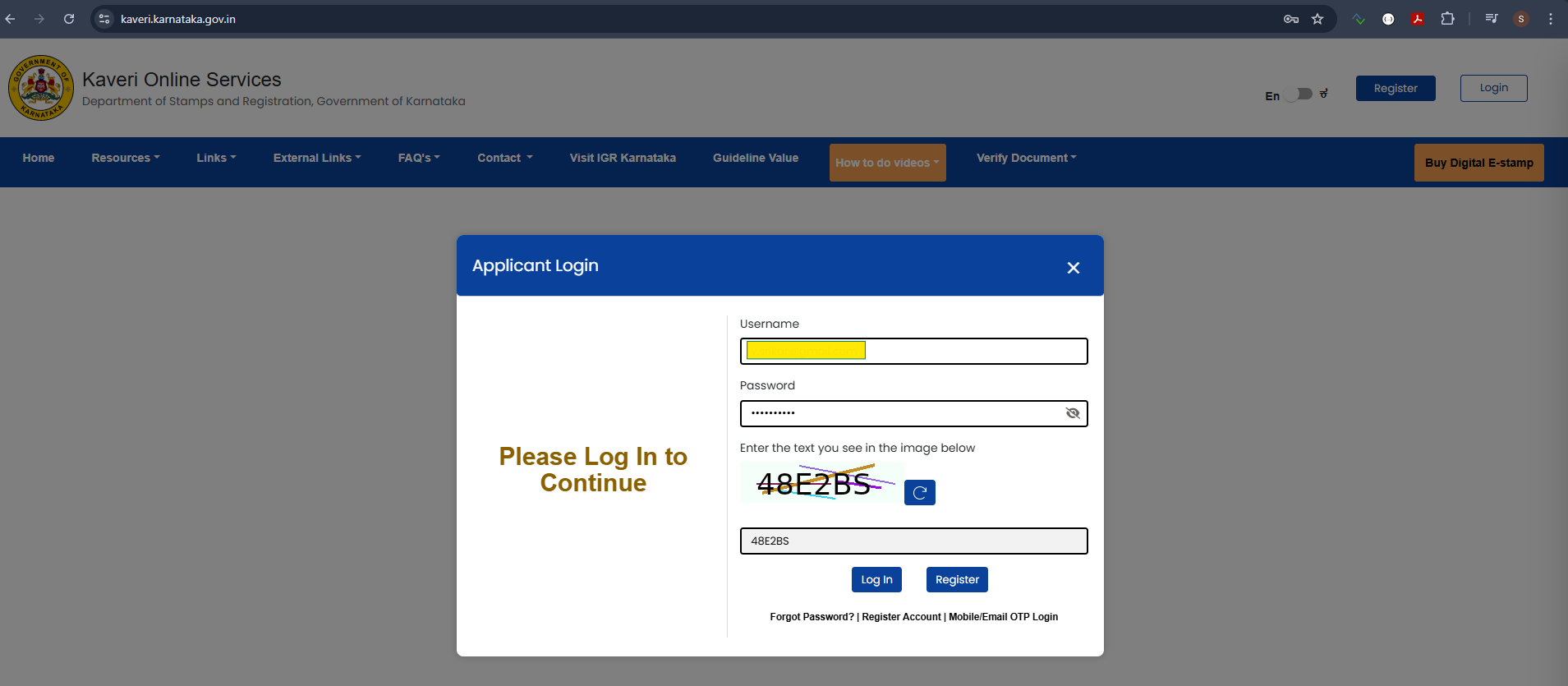
Click "Login" on the portal. In the "Applicant Login" dialog:
ಪೋರ್ಟಲ್ನಲ್ಲಿ "Login" ಒತ್ತಿ. "Applicant Login" ಡಯಲಾಗ್ನಲ್ಲಿ:
- Enter your registered Email address as the Username
- Enter your Password
- Enter the captcha from the image
- Click "Log In"
- Username ಆಗಿ ನೋಂದಾಯಿತ Email ವಿಳಾಸ ನಮೂದಿಸಿ
- Password ನಮೂದಿಸಿ
- ಚಿತ್ರದಿಂದ captcha ನಮೂದಿಸಿ
- "Log In" ಒತ್ತಿ
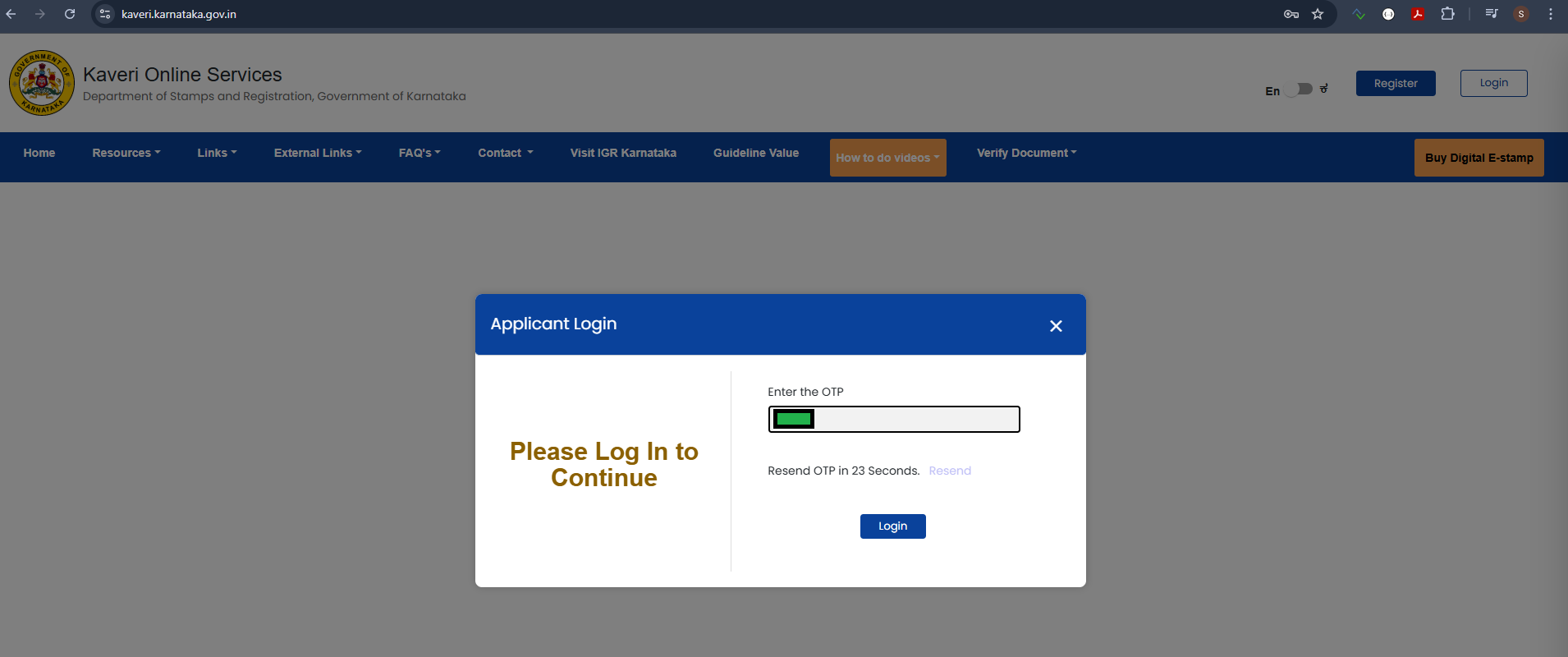
Step 4: Enter the login OTP sent to email and mobile
ಹಂತ 4: ಇಮೇಲ್ ಮತ್ತು ಮೊಬೈಲ್ಗೆ ಬಂದ ಲಾಗಿನ್ OTP ನಮೂದಿಸಿ
After clicking Log In, an OTP is sent to both your registered email and mobile number (the same OTP goes to both). Enter it in the "Enter the OTP" field and click "Login". If you did not receive it, wait for the "Resend OTP" timer to expire and try again.
Log In ಒತ್ತಿದ ನಂತರ ನೋಂದಾಯಿತ ಇಮೇಲ್ ಮತ್ತು ಮೊಬೈಲ್ ಎರಡಕ್ಕೂ OTP ಕಳುಹಿಸಲಾಗುತ್ತದೆ. ಅದನ್ನು "Enter the OTP" ಕ್ಷೇತ್ರದಲ್ಲಿ ನಮೂದಿಸಿ "Login" ಒತ್ತಿ. OTP ಬರದಿದ್ದರೆ "Resend OTP" ಟೈಮರ್ ಮುಗಿಯಲು ಕಾದು ಮತ್ತೆ ಪ್ರಯತ್ನಿಸಿ.
Step 5: Start a new EC application
ಹಂತ 5: ಹೊಸ EC ಅರ್ಜಿ ಪ್ರಾರಂಭಿಸಿ
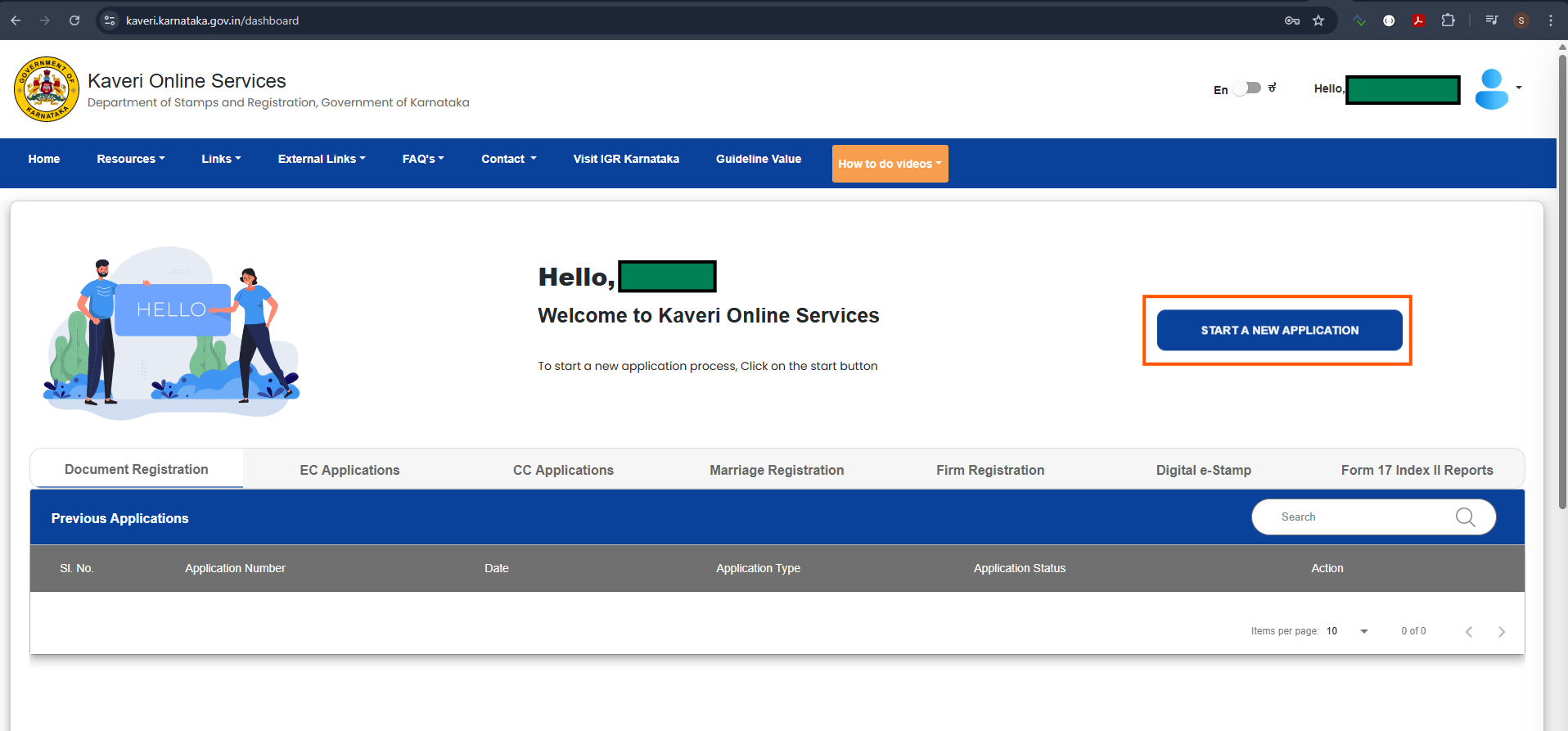
After logging in you will see a welcome dashboard. Click the "START A NEW APPLICATION" button on the right side of the screen.
ಲಾಗಿನ್ ನಂತರ ವೆಲ್ಕಮ್ ಡ್ಯಾಶ್ಬೋರ್ಡ್ ಕಾಣಿಸುತ್ತದೆ. ಪರದೆಯ ಬಲಭಾಗದಲ್ಲಿ "START A NEW APPLICATION" ಗುಂಡಿ ಒತ್ತಿ.
Step 6: Select Encumbrance Certificate (Online EC)
ಹಂತ 6: Encumbrance Certificate (Online EC) ಆಯ್ಕೆ ಮಾಡಿ
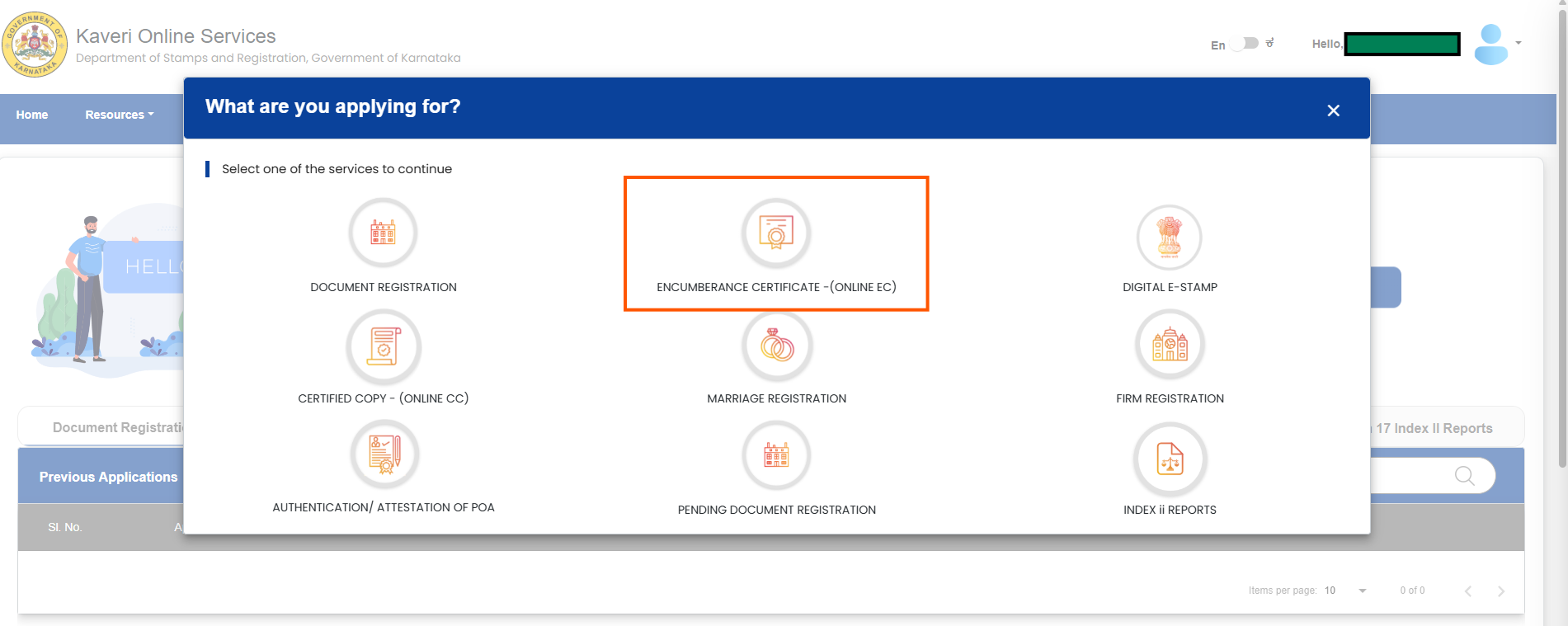
A dialog "What are you applying for?" appears with 9 options. Click "ENCUMBERANCE CERTIFICATE -(ONLINE EC)". Do not choose any other option.
"What are you applying for?" ಎಂಬ ಡಯಲಾಗ್ 9 ಆಯ್ಕೆಗಳೊಂದಿಗೆ ಕಾಣಿಸುತ್ತದೆ. "ENCUMBERANCE CERTIFICATE -(ONLINE EC)" ಒತ್ತಿ. ಬೇರೆ ಆಯ್ಕೆ ಮಾಡಬೇಡಿ.
Step 7: Read the EC prerequisites and continue
ಹಂತ 7: EC ಪೂರ್ವಷರತ್ತುಗಳನ್ನು ಓದಿ ಮುಂದುವರಿಯಿರಿ
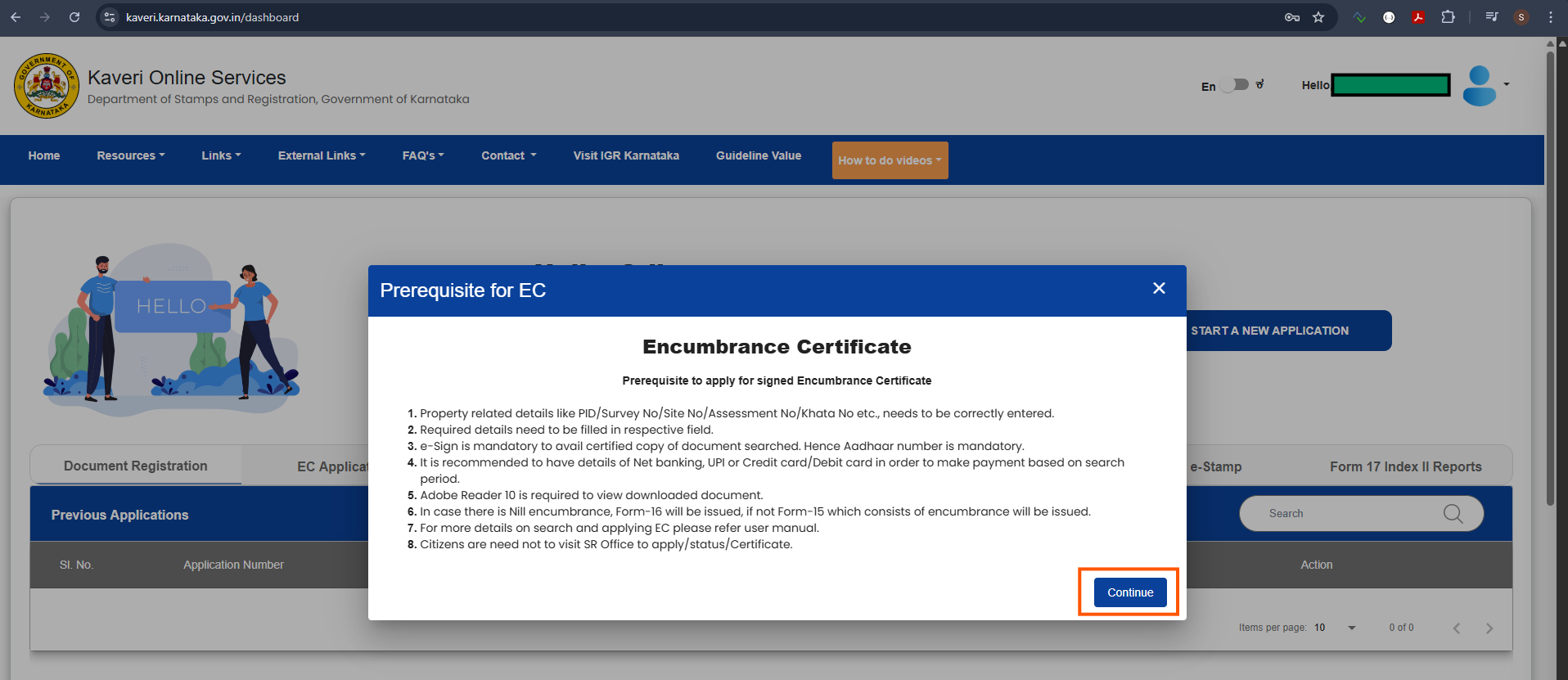
A "Prerequisite for EC" dialog appears with 8 bullet points about what you need (Sale Deed, property details, Aadhaar, etc.). Read through them and click "Continue".
"Prerequisite for EC" ಡಯಲಾಗ್ 8 ಅಂಶಗಳೊಂದಿಗೆ ಕಾಣಿಸುತ್ತದೆ (Sale Deed, ಆಸ್ತಿ ವಿವರ, ಆಧಾರ್ ಇತ್ಯಾದಿ). ಓದಿ "Continue" ಒತ್ತಿ.
Step 8: Select the EC search period
ಹಂತ 8: EC ಹುಡುಕಾಟ ಅವಧಿ ಆಯ್ಕೆ ಮಾಡಿ
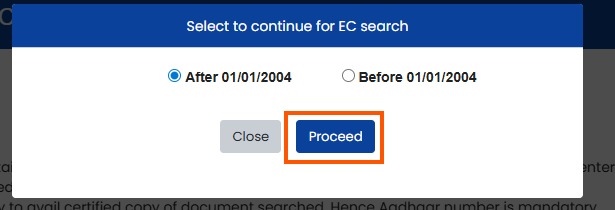
Select "After 01/01/2004" if your property was registered after Jan 1, 2004 (this applies to most residential flats and newer properties). Select "Before 01/01/2004" only if your property is older. Click "Proceed".
ನಿಮ್ಮ ಆಸ್ತಿ Jan 1, 2004 ನಂತರ ನೋಂದಾಯಿಸಿದ್ದರೆ "After 01/01/2004" ಆಯ್ಕೆ ಮಾಡಿ. ಹಳೆಯ ಆಸ್ತಿಯಾಗಿದ್ದರೆ ಮಾತ್ರ "Before 01/01/2004" ಆಯ್ಕೆ ಮಾಡಿ. "Proceed" ಒತ್ತಿ.
Step 9: Use Search by Property Number to get FORM-15
ಹಂತ 9: FORM-15 ಪಡೆಯಲು Search by Property Number ಬಳಸಿ
Select the "Search by Property Number" tab; this is mandatory to receive FORM-15, which is required for the eKhata application.
"Search by Property Number" ಟ್ಯಾಬ್ ಆಯ್ಕೆ ಮಾಡಿ; ಇ-ಖಾತ ಅರ್ಜಿಗೆ ಅಗತ್ಯವಾದ FORM-15 ಪಡೆಯಲು ಇದು ಕಡ್ಡಾಯ.
Fill in all dropdowns using your Sale Deed ("Composite Property" section):
Sale Deed ("Composite Property" ವಿಭಾಗ) ಬಳಸಿ ಎಲ್ಲ ಡ್ರಾಪ್ಡೌನ್ಗಳನ್ನು ತುಂಬಿ:
- DISTRICT: e.g., Bangalore Urban
- TALUKA: e.g., Bangalore North
- HOBLI/TOWN: as listed in Sale Deed
- INDEX II: VILLAGE: as listed in Sale Deed
- Property Type: select "Non-Agricultural" for residential flats/houses
- PROPERTY NUMBER TYPE: select "Khata No"
- PRESENT PROPERTY NUMBER DETAILS: enter your Khata number from the Sale Deed
- DISTRICT: Bangalore Urban
- TALUKA: Bangalore North
- HOBLI/TOWN: Sale Deed ನಲ್ಲಿ ನಮೂದಿಸಿದಂತೆ
- INDEX II: VILLAGE: Sale Deed ನಲ್ಲಿ ನಮೂದಿಸಿದಂತೆ
- Property Type: ವಸತಿ ಫ್ಲ್ಯಾಟ್/ಮನೆಗೆ "Non-Agricultural" ಆಯ್ಕೆ ಮಾಡಿ
- PROPERTY NUMBER TYPE: "Khata No" ಆಯ್ಕೆ ಮಾಡಿ
- PRESENT PROPERTY NUMBER DETAILS: Sale Deed ನಿಂದ ಖಾತ ಸಂಖ್ಯೆ ನಮೂದಿಸಿ
Step 10: Enter boundary details and search
ಹಂತ 10: ಗಡಿ ವಿವರ ನಮೂದಿಸಿ ಹುಡುಕಿ
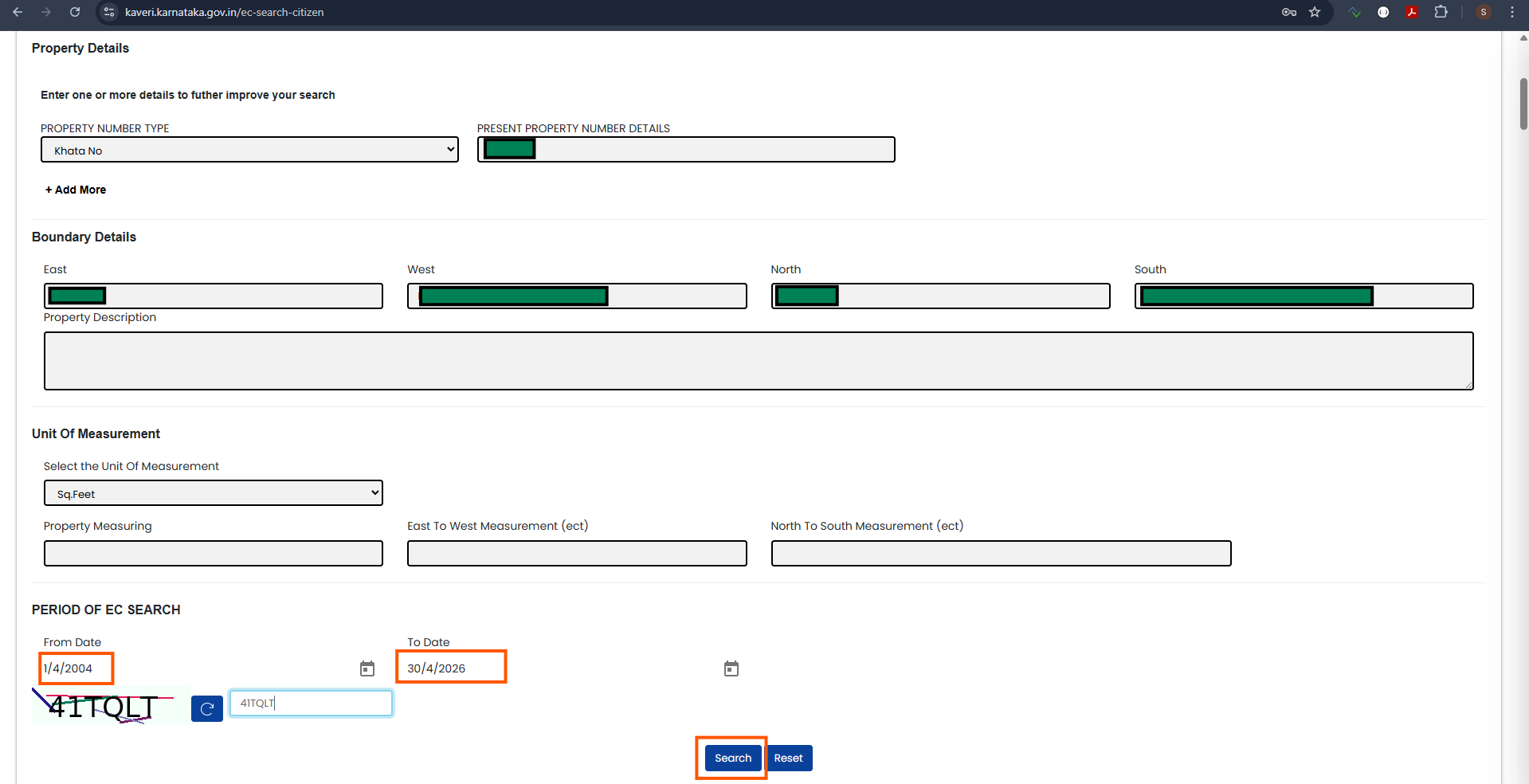
Fill in Boundary Details (East, West, North, South) from your Sale Deed's "Composite Property" section (usually near the end of the document, e.g., page 13 of 14).
Sale Deed ನ "Composite Property" ವಿಭಾಗದಿಂದ Boundary Details (ಪೂರ್ವ, ಪಶ್ಚಿಮ, ಉತ್ತರ, ದಕ್ಷಿಣ) ತುಂಬಿ.
Set the PERIOD OF EC SEARCH:
PERIOD OF EC SEARCH ಹೊಂದಿಸಿ:
- From Date: at least one day before your sale deed registration date
- To Date:
31/10/2024or any later date, including today's date
- From Date: ನಿಮ್ಮ ಮಾರಾಟ ದಾಖಲೆ ನೋಂದಣಿ ದಿನಾಂಕಕ್ಕಿಂತ ಕನಿಷ್ಠ ಒಂದು ದಿನ ಮೊದಲು
- To Date:
31/10/2024ಅಥವಾ ನಂತರದ ಯಾವುದೇ ದಿನಾಂಕ, ಇಂದಿನ ದಿನಾಂಕ ಸಹ ಸರಿ
Enter the captcha and click "Search".
captcha ನಮೂದಿಸಿ "Search" ಒತ್ತಿ.
Step 11: Identify the correct property record in the results
ಹಂತ 11: ಫಲಿತಾಂಶಗಳಲ್ಲಿ ಸರಿಯಾದ ಆಸ್ತಿ ದಾಖಲೆ ಗುರುತಿಸಿ
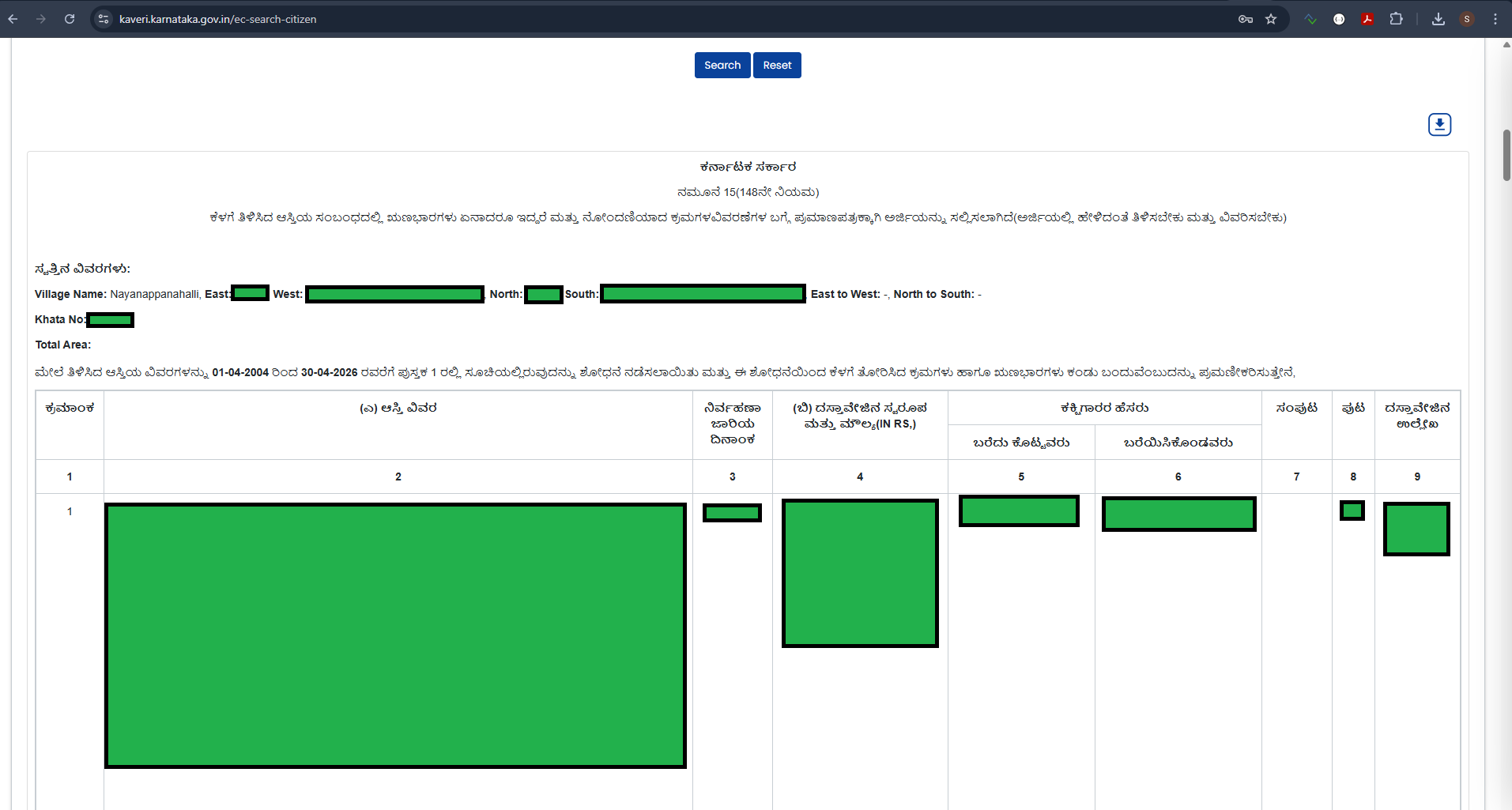
Search results will appear. Carefully identify your property from the list. The portal can be buggy and may show multiple records or no results.
ಹುಡುಕಾಟ ಫಲಿತಾಂಶಗಳು ಕಾಣಿಸುತ್ತವೆ. ಪಟ್ಟಿಯಿಂದ ನಿಮ್ಮ ಆಸ್ತಿಯನ್ನು ಎಚ್ಚರಿಕೆಯಿಂದ ಗುರುತಿಸಿ. ಪೋರ್ಟಲ್ ಕೆಲವೊಮ್ಮೆ ಅಸ್ಥಿರವಾಗಿರುತ್ತದೆ. ಹಲವು ಫಲಿತಾಂಶಗಳು ಅಥವಾ ಯಾವ ಫಲಿತಾಂಶವೂ ಬಾರದಿರಬಹುದು.
🛟 If you cannot find your property or the portal shows errors, contact the helpdesk:
📞 080-68265316 (best option)
✉️ helpdsr@karnataka.gov.in
/ igrshelpline@gmail.com
🔗 kaveri.karnataka.gov.in/faq2
🛟 ನಿಮ್ಮ ಆಸ್ತಿ ಸಿಗದಿದ್ದರೆ ಅಥವಾ ಪೋರ್ಟಲ್ ದೋಷ ತೋರಿಸಿದರೆ ಹೆಲ್ಪ್ಡೆಸ್ಕ್ ಸಂಪರ್ಕಿಸಿ:
📞 080-68265316
✉️ helpdsr@karnataka.gov.in
Step 12: Confirm the selected property and proceed
ಹಂತ 12: ಆಯ್ಕೆ ಮಾಡಿದ ಆಸ್ತಿಯನ್ನು ದೃಢೀಕರಿಸಿ ಮುಂದುವರಿಯಿರಿ
After identifying your property, check both confirmation checkboxes:
ನಿಮ್ಮ ಆಸ್ತಿ ಗುರುತಿಸಿದ ನಂತರ ಎರಡೂ ಚೆಕ್ಬಾಕ್ಸ್ಗಳನ್ನು ಟಿಕ್ ಮಾಡಿ:
- "The above result displayed are related to the input provided by me"
- "I would like to proceed with applying for a digital signed copy of the EC."
- "ಮೇಲೆ ತೋರಿಸಿದ ಫಲಿತಾಂಶ ನಾನು ನೀಡಿದ ಮಾಹಿತಿಗೆ ಸಂಬಂಧಿಸಿದ್ದು"
- "EC ಯ ಡಿಜಿಟಲ್ ಸಹಿ ಪ್ರತಿಗೆ ಅರ್ಜಿ ಸಲ್ಲಿಸಲು ಮುಂದುವರಿಯಲು ಬಯಸುತ್ತೇನೆ"
Then click "Proceed".
"Proceed" ಒತ್ತಿ.

Step 13: Review the request and pay the EC fee
ಹಂತ 13: ವಿನಂತಿ ಪರಿಶೀಲಿಸಿ EC ಶುಲ್ಕ ಪಾವತಿಸಿ
An EC checkout page appears showing your "Input Search Parameters" and "Payment details". The fee is typically ₹100–200 depending on the EC period requested. Verify the details are correct, then click "Make Payment".
EC ಚೆಕ್ಔಟ್ ಪುಟ ಕಾಣಿಸುತ್ತದೆ. ವಿನಂತಿಸಿದ ಅವಧಿಯನ್ನು ಅವಲಂಬಿಸಿ ಶುಲ್ಕ ಸಾಮಾನ್ಯವಾಗಿ ₹100–200. ವಿವರಗಳನ್ನು ಪರಿಶೀಲಿಸಿ "Make Payment" ಒತ್ತಿ.
Step 14: E-sign the request with Aadhaar
ಹಂತ 14: ಆಧಾರ್ನಿಂದ ವಿನಂತಿಗೆ e-sign ಮಾಡಿ
After payment, click "E-Sign". On the Aadhaar authentication screen:
ಪಾವತಿಯ ನಂತರ "E-Sign" ಒತ್ತಿ. ಆಧಾರ್ ದೃಢೀಕರಣ ಪರದೆಯಲ್ಲಿ:
- Enter your Aadhaar Number
- Enter the Aadhaar TOTP received on your Aadhaar-linked mobile
- Check the Aadhaar authentication consent checkbox
- Click "Submit"
- ನಿಮ್ಮ ಆಧಾರ್ ಸಂಖ್ಯೆ ನಮೂದಿಸಿ
- ಆಧಾರ್-ಲಿಂಕ್ ಮೊಬೈಲ್ಗೆ ಬಂದ ಆಧಾರ್ TOTP ನಮೂದಿಸಿ
- ಆಧಾರ್ ದೃಢೀಕರಣ ಸಮ್ಮತಿ ಚೆಕ್ಬಾಕ್ಸ್ ಟಿಕ್ ಮಾಡಿ
- "Submit" ಒತ್ತಿ
After successful e-signing, the e-signed Form 22 will appear in your dashboard.
ಯಶಸ್ವಿ e-ಸೈನಿಂಗ್ ನಂತರ e-ಸೈನ್ ಮಾಡಿದ Form 22 ನಿಮ್ಮ ಡ್ಯಾಶ್ಬೋರ್ಡ್ನಲ್ಲಿ ಕಾಣಿಸುತ್ತದೆ.
Step 15: Download the signed FORM-15 EC PDF
ಹಂತ 15: ಸಹಿ ಮಾಡಿದ FORM-15 EC PDF ಡೌನ್ಲೋಡ್ ಮಾಡಿ
Your application is sent to the Sub-Registrar Office (SRO) for processing. Usually within minutes to a few hours, and sometimes longer during portal delays, a digitally signed EC certificate PDF will be available in your Kaveri dashboard. Download it; no office visit is required.
ನಿಮ್ಮ ಅರ್ಜಿ SRO ಗೆ ಕಳುಹಿಸಲ್ಪಟ್ಟಿದೆ. ಸಾಮಾನ್ಯವಾಗಿ ಕೆಲವು ನಿಮಿಷಗಳಿಂದ ಕೆಲವು ಗಂಟೆಗಳೊಳಗೆ, ಮತ್ತು ಪೋರ್ಟಲ್ ವಿಳಂಬ ಇದ್ದರೆ ಇನ್ನಷ್ಟು ಸಮಯದಲ್ಲಿ, ಡಿಜಿಟಲ್ ಸಹಿ ಹೊಂದಿದ EC PDF ನಿಮ್ಮ ಡ್ಯಾಶ್ಬೋರ್ಡ್ನಲ್ಲಿ ಲಭ್ಯವಾಗುತ್ತದೆ. ಡೋನ್ಲೋಡ್ ಮಾಡಿ; ಕಚೇರಿ ಭೇಟಿ ಅಗತ್ಯ ಇಲ್ಲ.
✅ You now have EC (FORM-15). When filling the eKhata application (Step 3),
enter the EC number (format: BMH-EC-A-XXXXXXX-2025-26)
under Encumbrance Certificate Info → Encumbrance Certificate Number.
✅ ಈಗ ನಿಮ್ಮ ಬಳಿ EC (FORM-15) ಇದೆ. ಇ-ಖಾತ ಅರ್ಜಿ (ಹಂತ 3) ತುಂಬುವಾಗ
Encumbrance Certificate Info → Encumbrance Certificate Number ನಲ್ಲಿ
EC ಸಂಖ್ಯೆ (ಸ್ವರೂಪ: BMH-EC-A-XXXXXXX-2025-26) ನಮೂದಿಸಿ.
Step 16: Verify the key fields inside your EC PDF
ಹಂತ 16: ನಿಮ್ಮ EC PDF ಒಳಗಿನ ಪ್ರಮುಖ ವಿವರಗಳನ್ನು ಪರಿಶೀಲಿಸಿ
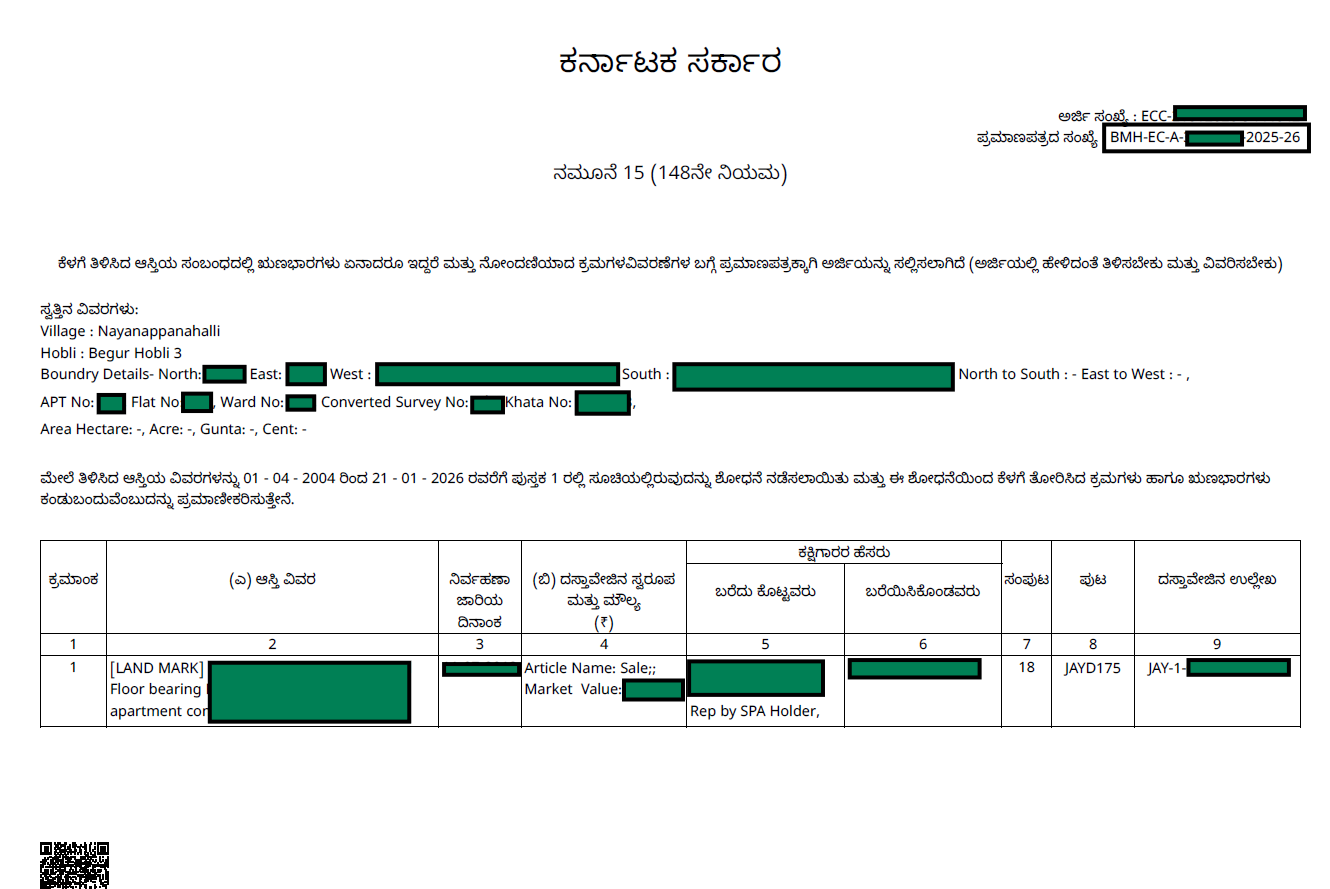
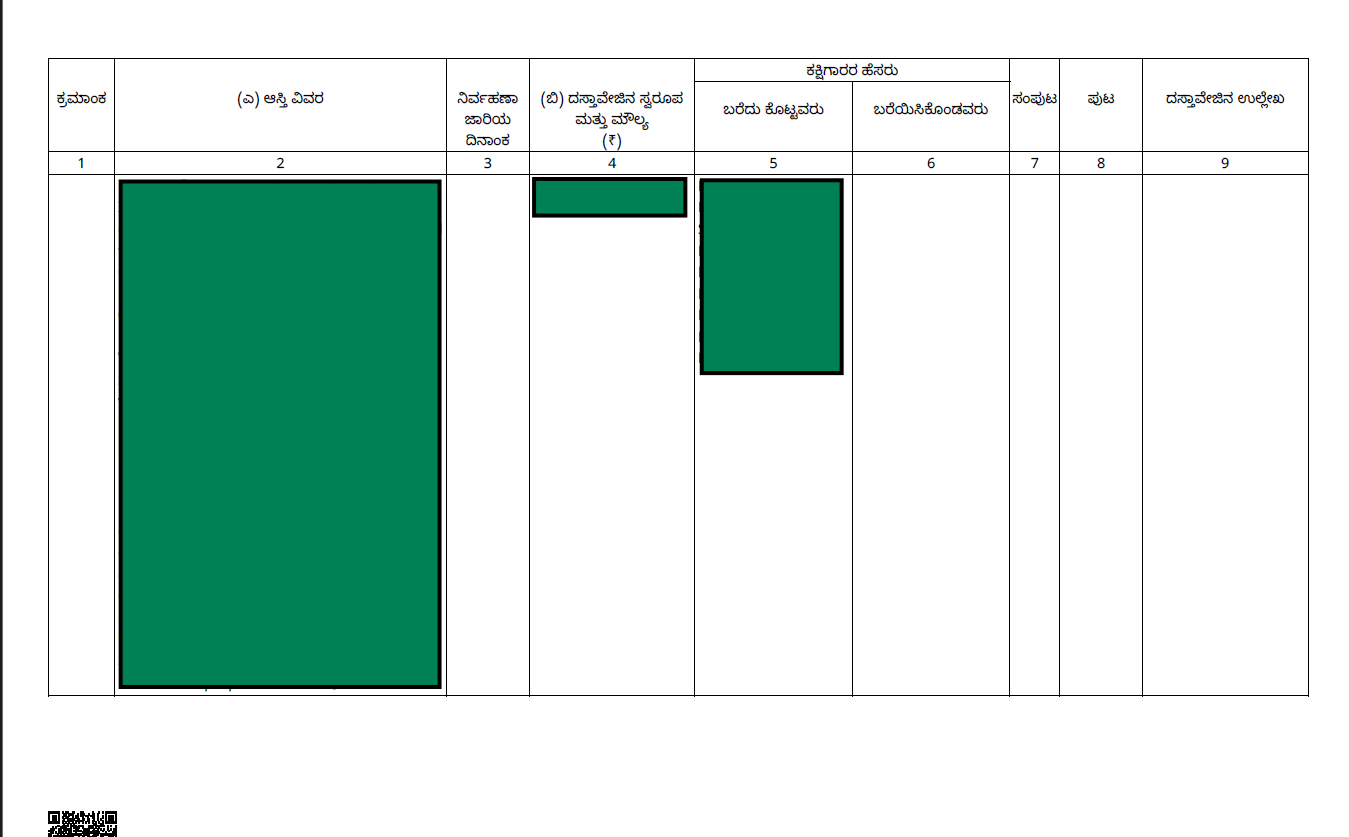
Once downloaded from your Kaveri dashboard, the EC is a multi-page Kannada PDF titled ನಮೂನೆ 15 (148ನೇ ನಿಯಮ), Form 15 under Rule 148 of the Karnataka Registration Rules. Below are the three sections of a sample (redacted) EC so you know what to look for. Click any image to enlarge it.
ಕಾವೇರಿ ಡ್ಯಾಶ್ಬೋರ್ಡ್ನಿಂದ ಡೌನ್ಲೋಡ್ ಮಾಡಿದ ನಂತರ EC ಒಂದು ಬಹು-ಪುಟದ ಕನ್ನಡ PDF ಆಗಿದ್ದು ನಮೂನೆ 15 (148ನೇ ನಿಯಮ) ಎಂಬ ಶೀರ್ಷಿಕೆ ಹೊಂದಿರುತ್ತದೆ. ಕೆಳಗೆ ಮಾದರಿ EC ಯ ಮೂರು ವಿಭಾಗಗಳನ್ನು ನೀಡಲಾಗಿದೆ (ಖಾಸಗಿ ವಿವರ ಮರೆಮಾಡಲಾಗಿದೆ). ಯಾವುದೇ ಚಿತ್ರ ಒತ್ತಿ ದೊಡ್ಡದಾಗಿ ನೋಡಿ.
📋 Key sections to verify in your EC:
📋 ನಿಮ್ಮ EC ನಲ್ಲಿ ಪರಿಶೀಲಿಸಬೇಕಾದ ಪ್ರಮುಖ ವಿಭಾಗಗಳು:
- Certificate Number (top right): format
BMH-EC-A-XXXXXXX-2025-26. You will enter this in the eKhata application. - Property details: Village, Hobli, Boundary details, Khata No. Confirm these match your Sale Deed.
- Encumbrance table: lists every registered transaction on the property (e.g., your purchase Sale Deed should appear as one row). Each row shows Article type, Market Value, and parties involved.
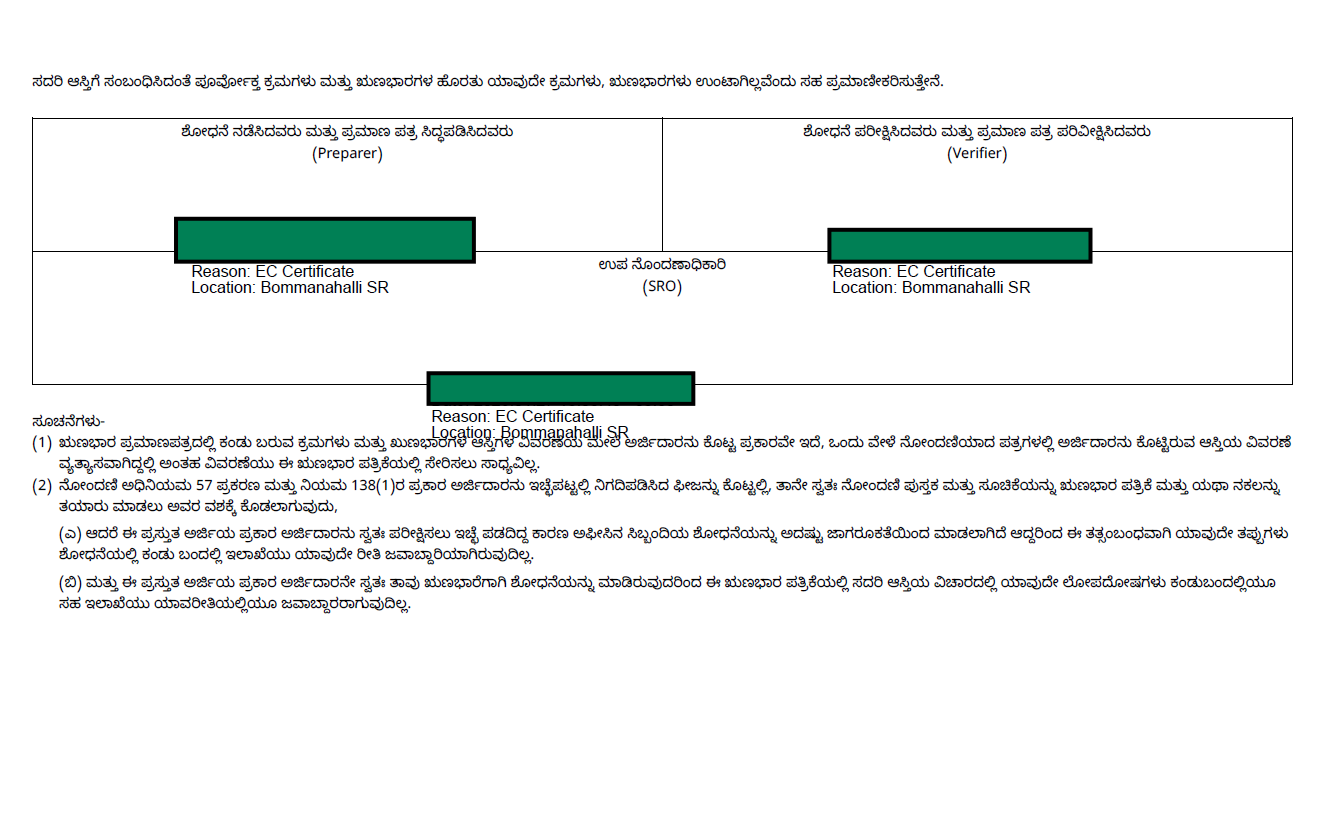
- Digital signatures (last page): Preparer, Verifier, and SRO all e-sign it. "Location: Bommanahalli SR" (or your SRO) confirms the issuing office.
- QR code (bottom left): scan with any QR reader to verify the certificate's authenticity on the Kaveri portal.
- ಪ್ರಮಾಣಪತ್ರ ಸಂಖ್ಯೆ (ಮೇಲ್ಭಾಗ ಬಲ):
BMH-EC-A-XXXXXXX-2025-26ಸ್ವರೂಪ. ಇ-ಖಾತ ಅರ್ಜಿಯಲ್ಲಿ ಇದನ್ನು ನಮೂದಿಸಬೇಕು. - ಆಸ್ತಿ ವಿವರ: ಗ್ರಾಮ, ಹೊಬ್ಳಿ, ಗಡಿ ವಿವರ, ಖಾತ ಸಂಖ್ಯೆ. ಇವು Sale Deed ನೋಂದಿಗೆ ಹೊಂದಾಣಿಕೆ ಆಗುತ್ತಿದೆ ಎಂದು ಖಾತ್ರಿ ಮಾಡಿ.
- ಋಣಭಾರ ಕೋಷ್ಟಕ: ಆಸ್ತಿಯ ಪ್ರತಿ ನೋಂದಾಯಿತ ವ್ಯವಹಾರ ಇಲ್ಲಿ ತೋರಿಸಲಾಗಿದೆ. ನಿಮ್ಮ ಖರೀದಿ Sale Deed ಒಂದು ಸಾಲಾಗಿ ಕಾಣಿಸಬೇಕು.
- ಡಿಜಿಟಲ್ ಸಹಿಗಳು (ಕೊನೆ ಪುಟ): Preparer, Verifier, ಮತ್ತು SRO ಎಲ್ಲರೂ e-ಸೈನ್ ಮಾಡಿರುತ್ತಾರೆ. ಇದು ಅಧಿಕೃತ ಪ್ರಮಾಣಪತ್ರ ಎಂದು ದೃಢೀಕರಿಸುತ್ತದೆ.
- QR ಕೋಡ್ (ಕೆಳ ಎಡ): ಯಾವುದೇ QR ರೀಡರ್ನಿಂದ ಸ್ಕ್ಯಾನ್ ಮಾಡಿ ಪ್ರಮಾಣಪತ್ರ ಸ್ಸತ್ಯಾಸತ್ಯತೆ ಪರಿಶೀಲಿಸಿ.
Page 1: Header, property details & encumbrance table
ಪುಟ 1: ಶೀರ್ಷಿಕೆ, ಆಸ್ತಿ ವಿವರ & ಋಣಭಾರ ಕೋಷ್ಟಕ
Page 2: Encumbrance table (continued)
ಪುಟ 2: ಋಣಭಾರ ಕೋಷ್ಟಕ (ಮುಂದಿನ ಭಾಗ)
Page 3: Closing declaration & digital signatures
ಪುಟ 3: ಸಮಾಪನ ಘೋಷಣೆ & ಡಿಜಿಟಲ್ ಸಹಿಗಳು